Got a tip for us?

Apple

The Apple iPhone 15 lineup comes with exciting features such as USB-C port, Dynamic Island, Action Button and more. The iPhone 15 starts at $799 and only goes up in price from there depending on the desired specs. Because of how costly it is to stay current with Apple tech, those looking to buy in want to make sure that the iPhone 15 is able to withstand at least some degree of wear and tear — including potential waterproofing. Here’s what you need to know about whether the iPhone 15 is waterproof and if you should be bringing it poolside.

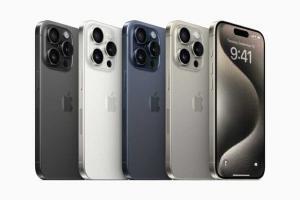
iPhone 15 Pro in black titanium, white titanium, blue titanium, and natural titanium finishes.

KEY TAKEAWAYS

  • The iPhone 15 has a water resistance rating but is not waterproof.
  • The iPhone 15’s water resistance is limited to fresh water and will not protect against damage in salt water or chemically treated pools.
  • Water damage is not covered under warranty, so if you damage your iPhone 15 by submerging it without a case, you will have to pay for repairs.

How Waterproof Is the iPhone 15?

The iPhone 15 isn’t completely waterproof. However, all iPhone 15 models, including the iPhone 15, iPhone 15 Plus, iPhone 15 Pro, and iPhone 15 Pro Max, are water resistant with an IP68 rating.

IP, or ingress protection, ratings fall under the International Electrotechnical Commission(IEC) 60529 standard, which rates how well devices hold up to dust and moisture. IP grades are the industry standard for electronics. You’ll find IP ratings on headphones, smartwatches, and various other personal gadgets.

IP numbers come in two parts:

  • Dust protection: The first number measures dust protection on a scale from no protection (zero) to wholly sealed off (six).
  • Moisture resistance: The second number goes from no seal (zero) to complete protection against water pressure from multiple angles–and hot water too (nine).

The IP68 rating on iPhone 15 indicates these phones are well protected against dust and are also water-resistant but not fully waterproof.

What does that mean in real life? Whether you accidentally drop your phone in a pool or intentionally take your phone with you in water, your iPhone 15 should be okay.

Apple states all four iPhone 15 models can be submerged and protected in water up to 6 meters deep for up to 30 minutes.

Is the iPhone 15 resistant to salt water?

While the IP68 rating for the iPhone 15 family says that they’re all good for exposure to fresh water, it’s a little ambiguous about other kinds of liquids. Questions regarding how well devices hold up in salt water are frequently asked as a result. Fresh water is harmless to the iPhone 15 in the ways specified above, but salt water can have devastating effects on it. It’s a good idea, then, to pay special attention to keeping your phone dry when swimming in a salt water pool or when heading to the ocean.

Is There Any iPhone That Is Waterproof?

No iPhone is entirely waterproof, but many models after iPhone 7 come with water resistance. Several of the newer iPhone generations share or come close to iPhone 15’s water protection.

Models with the same IP68 resistance to splashing, dust, and immersion in up to 6 meters of water for a maximum of 30 minutes include:

  • iPhone 14
  • iPhone 14 Plus
  • iPhone 14 Pro
  • iPhone 14 Pro Max
  • iPhone 13
  • iPhone 13 mini
  • iPhone 13 Pro
  • iPhone 13 Pro Max
  • iPhone 12
  • iPhone 12 mini
  • iPhone 12 Pro
  • iPhone 12 Pro Max

If your iPhone is exposed to or dunked in water, Apple recommends drying the device by gently tapping it against your hand with the lightning connector facing downward. You’ll also want to avoid charging or using the Lightning port on your iPhone until it’s dry.

Some iPhones also hold the IP68 rating but can’t be immersed as deeply in water. These models come with IP68 protection in up to 4-meter depths for 30 minutes:

  • iPhone 11 Pro
  • iPhone 11 Pro Max

Other iPhones can withstand only 2-meter depths for 30 minutes maximum. This list includes:

  • iPhone 11
  • iPhone XS
  • iPhone XS Max

Several older iPhones cut back the water resistance further with an IP67 rating. This rating offers dust protection and tolerance to submersion in 1-meter depths for 30 minutes.

  • iPhone SE (2nd generation)
  • iPhone XR
  • iPhone X
  • iPhone 8
  • iPhone 8 Plus
  • iPhone 7
  • iPhone 7 Plus

The above iPhones can also withstand everyday spills from beverages such as coffee, tea, and juice. If you need to clean your phone, Apple recommends avoiding soaps or detergents.

Here are our top AirTags tips and tricks to help you get the most out of Apple’s item trackers.

If you’re an iPhone user, Apple’s AirTag is a tailor-made option to help track your items. Whether it’s keys, a bag, or something else, the item tracker takes the best of Apple software and hardware design to provide a great solution. We want to help you get the most out of the item tracker by highlighting the best AirTags tips and tricks.

Here are our top tips and tricks to ensure you master your Apple AirTags in no time.

Top 10 AirTags Tips and Tricks

1. How to set up an AirTag

If you’ve just got hold of a new AirTag, you’ll want to get it set up and ready for use. Thankfully, setting up an AirTag is super easy. Here’s how:

  1. Make sure your ‌iPhone‌ is unlocked and showing the Home Screen.
  2. Remove the battery tab from the AirTag if you haven’t already done so, then hold it near your ‌iPhone‌.
  3. Tap Connect on the card that appears on the screen.
  4. Choose a name from the list, or tap Custom Name to type a name and select an emoji, then tap Continue.
  5. Tap Continue to register the item to your Apple ID, then tap Finish.

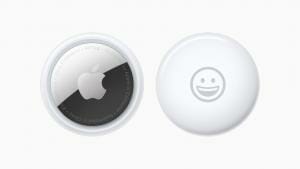
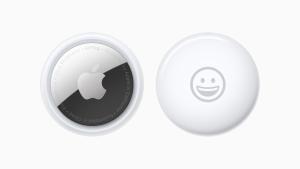
Front and back view of AirTag personalised with a smiley-face emoji.

2. How to View the Location of an AirTag Item

After setting up a new AirTag, you’ll want to know how to track it so that you can locate the attached item, should you misplace it. If your iPhone or iPad is running iOS 14.5/iPadOS 14.5 or later, you can use the ‌Find My‌ app to locate a missing AirTag that’s linked to your Apple ID. Here’s how.

  1. In the Find My app, tap Items, then tap the item that you want to locate.
  2. If the item can be located, it will appear on the map. You’ll see the updated location and timestamp under the item’s name.
  3. If the item can’t be found, you’ll see where and when it was last located. To receive a notification once it’s located again, turn on Notify When Found under "Notifications."

Use Find My to find your AirPods, Apple Watch, and AirTag  

3. How to Make an AirTag Play a Sound to Find it

If an AirTag is nearby, you can get it to play a sound so that you can locate it easier.

  1. Open the Find My app and tap Items.
  2. Select the AirTag that you want to play a sound.!
  3. Tap Play Sound.

To stop playing the sound before it automatically ends, tap Stop Sound. You can also pick up the AirTag and give it a squeeze to make it stop.

Pro tip: If you ask Siri to find my [item] or play a sound on my [item], ‌Siri‌ will ping the AirTag and cause it to make a noise so that you can locate it.

4. How to Check Your AirTags Firmware Version

Apple routinely issues over-the-air firmware updates for AirTags with updates that fix bugs, add features, and attempt to quench safety concerns.

Apple’s AirTag usually update automatically, but you can check the current firmware version of your item tracker on a connected iPhone. Here’s how:

  1. Open up the Find My App.
  2. Tap on the "Items" tab.
  3. Tap on the AirTag that you want to check in the list.
  4. In this view, tap on the name of the AirTag to see the current firmware version.

5. How to Check an AirTag’s Battery Life

AirTags come equipped with a CR2032 battery that Apple says is designed to last for at least a year, so you shouldn’t need to worry about the battery in your AirTag often.

If you’re curious about how it’s holding up or if you’re worried it could get low at a time that would be inconvenient, it’s easy to check the battery level of an AirTag in the Find My

  1. Open the ‌Find My‌ app and tap on the Items tab.
  2. Tap on the name of the AirTag that you want to check.
  3. Battery life is listed right under the AirTag’s name and location, so you can see it at a glance.

The battery icon does not provide a specific percent, but it’s similar to an iPhone battery and will drain down over time.

You don’t need to keep a close eye on the battery because your ‌iPhone‌ will let you know when it’s starting to get low so you can swap it out.

6. How to Change an AirTag’s Battery

AirTags use standard coin-shaped CR2032 batteries, which are designed to last at least a year before needing to be replaced. Most early AirTag adopters have probably already had to swap in a new battery, but if you’ve never done it before and find yourself in need of a battery replacement, it’s easy to put in a new one.

CR2032 batteries are common batteries that can be purchased on Amazon for about a dollar per battery, and you can also get them at many retail stores.
Once you have a new battery, follow these steps to put it in:

  1. Press down on the stainless steel backing of the AirTag.
  2. As you press down, rotate counterclockwise until the cover stops rotating.
  3. Pull apart the two halves of the AirTag.
  4. Take out the old battery and replace it with the new battery in the same orientation, which is positive side up. You’ll hear a chiming sound when the battery is seated correctly.
  5. Replace the stainless steel bottom of the AirTag, and make sure the three tabs on the cover align with the slots on the AirTag.
  6. Rotate the cover clockwise back in place until it stops.

7. How to rename an AirTag

If you chose the wrong name during setup, or simply want to change it, you can rename your AirTag in just a few steps.

  1. Open the Find My app on your iPhone, iPad, or Mac
  2. Choose Items
  3. Find your AirTag in the list and tap to select it
  4. Swipe to bring up the full information panel about that AirTag
  5. Tap on Rename Item. This takes you into the same naming selection you had during initial setup. So you can again pick from one of Apple’s suggestions.
  6. You can also choose Custom Name
  7. By default, you can now tap on an emoji to use that as the name.
  8. Or you can instead tap above the emoji, where the old name is
  9. This dismisses the emoji and brings up a regular keyboard for you to type what you want
  10. Tap Done.

Front and back view of AirTag personalised with a smiley-face emoji.  

8. How to get notified when you leave an AirTag behind

With this AirTag trick, you’ll be alerted when you’re leaving the AirTag behind, or if the AirTag is being moved away from you in a theft. This reduces the time it takes for you to be aware that something’s wrong, and therefore to act.

  • Open Find My.
  • Tap Items.
  • Tap the AirTag or the name you’ve given to the AirTag.
  • Scroll down and select Notify When Left Behind.
  • Tap the toggle next to Notify When Left Behind to turn it green.

9. How to Put an AirTag in Lost Mode

‌AirTags‌ can be tracked using the Items tab in ‌Find My‌, and just like your Apple devices, if one should become lost, you can put it in Lost Mode to locate it. If an AirTag is nearby, it will connect to an Apple device over Bluetooth to relay its location, and there’s even a Precision Finding feature on iPhone 11 and newer that uses the U1 chip for finding items that are misplaced close by.

An AirTag that’s out of range can still be tracked using the ‌Find My‌ app, but it won’t rely on the Bluetooth signals from your own device. Instead, the ‌‌‌Find My‌‌‌ Network takes advantage of nearly a billion Apple devices out in the world to help you locate your AirTag.

However, if an AirTag isn’t nearby and there are no Apple devices in the area in which it’s located, ‌‌Find My‌‌ will only be able to tell you where it was last seen on the map. In such cases, you can place the AirTag in Lost Mode. That way, if someone with an ‌iPhone‌ or Android device that has NFC comes across the item, they can help return it to you. Here’s how it works.

  1. Launch the Find My app on your ‌iPhone‌.
  2. Tap Items.
  3. Tap the AirTag you want to mark as lost.
  4. Swipe down on the card and under "Lost Mode," tap Enable.
  5. Tap Continue.
  6. Enter your phone number in the input field, then tap Next.
  7. Toggle the switch next to Notify When Found, and optionally customize the lost message that is shown when someone finds the item. Note that you can only customize the message and activate Notify When Found if the AirTag is out of range of your device.
  8. Tap Activate.

Now that the AirTag is marked as lost, anyone who finds it can bring it close to an NFC-enabled ‌iPhone‌ or Android phone and they will see a notification linking them to a website URL that contains your lost message and phone number.

See also: Top 11 benefits of AirTags: Apple’s Item Trackers

10. How to Factory Reset an AirTag So Someone Else Can Use It

When you set up an AirTag, it’s automatically associated with your Apple ID, which means it’s linked to your ‌Apple ID‌ and can’t be used by someone else unless you reset it.

Resetting is as simple as removing an AirTag from your ‌Apple ID‌, by following these steps:

  1. Open the Find My app.
  2. Tap on the AirTag that you want to remove by choosing its name from the list.
  3. Swipe upwards to bring up the full AirTag settings.
  4. Tap on "Remove Item."
  5. Tap on "Remove" and then tap again on the "Remove" popup.

Once you’ve gone through this process, the AirTag’s ownership is cleared and you can give it to someone else to set up and use with their own account.

Tag: AirTags

It’s no doubt Apple Vision Pro is extremely expensive. So, Why is it so pricey? Lets find out

During the June 2023 WWDC event, Apple made jaws drop when it announced that its newest product, the Vision Pro AR/VR "mixed reality" headset, would start at $3,499.00.

At $3,499, Apple’s Vision Pro costs more than three weeks worth of pay for the average American, according to Bureau of Labor Statistics data. The Vision Pro is also far more expensive than rival headsets, such as Meta’s $499.99 Quest 3, and the $999.99 Meta Quest Pro.

It tops many other Apple products in terms of price too. Buying an iPhone 14 Pro Max, a 12.9-inch iPad Pro and an Apple Watch Ultra would still be cheaper than an Apple Vision Pro (although it comes fairly close.) Shipments of virtual and augmented reality headsets also plummeted in 2022, according to International Data Corporation statistics published in March, adding to the skepticism.

A close-up of Apple Vision Pro.  

In an interview with ABC News’ Good Morning America, Apple CEO Tim Cook acknowledged the headset’s price when asked if the average person would be able to afford it.

"I think people will make different choices depending upon their current financial situation," he said.

To call Apple’s new headset expensive may be an understatement. But once you step back and look at the larger picture beyond the initial sticker shock, that eye-watering price starts to make a little sense.

The $3,499 price tag is leading many Apple fans to question: “Why does Apple Vision Pro cost so much?”

Reasons Why Apple Vision Pro Is So Expensive

High-Quality Hardware

One of the biggest factors contributing to the cost of the Vision Pro is the hardware. The device is packed with state-of-the-art components, each contributing to the overall user experience. From the high-resolution display and powerful processor to the advanced sensors and the cutting-edge haptic feedback system, each piece of hardware plays a crucial role in providing a seamless and immersive experience. These components are not cheap to produce, and their high cost is reflected in the price of the Vision Pro.

The first thing you’ll notice about the Vision Pro is the chassis, which evokes a pair of high-end ski goggles. A tinted, continuous front panel wraps around the wearer’s eyes, acting as a lens and concealing a fan that draws air through the headset to cool the electronics inside.

Around the back of the Vision Pro, there’s a band that can be easily swapped out, and a dial for adjusting the tightness of the headset. Zeiss worked in partnership with Apple to create magnetic lenses for prescription wearers.

Unlike some AR headsets on the market, the Vision Pro’s battery pack isn’t built into the device itself. A wire running from the rear connects to a battery pack, which provides up to two hours of use. Or Vision Pro wearers can plug into the wall for an extended experience.

One presumes that the displays suck up most of the power. The Vision Pro has two (plus an external panel), one for each eye, with 23 million pixels across both. A custom 3D lens ensures that the UI always remains within view, while features like HDR and “wide color” deliver an ostensibly superior image.

IR cameras inside of the Vision Pro track your eyes, while downward-facing cameras on the exterior of the chassis track hands. A third set of sensors — lidar sensors — sense objects around the Vision Pro in real time, tracking their positions.

All of the Vision Pro’s sensors — 23 in total, including a dozen cameras, five sensors and six mics — feed into the R1, a new Apple-originated chip designed to “eliminate lag” and stream images to the headset’s display “eight times faster than the blink of an eye” (as per Apple PR).

The R1 also enables EyeSight, a feature of the Vision Pro that projects a live feed of the wearer’s eyes to the aforementioned external display. It has the effect of making the headset look transparent — at least in pre-recorded videos.

Expensive Research and Development

Years of research and development are also likely reflected in Vision Pro’s price. Since it’s an entirely different type of computer compared to the Mac, iPhone or iPad, Apple had to develop new technologies such as the R1 chip, which processes data from the headset’s 12 cameras, five sensors and six microphones.

Apple has spent over $100 billion in research and development over the last five years. At least $20 billion has probably gone to the new device.

This means consulting new specialists, testing things it didn’t previously have facilities for, and many more underlying logistical factors.

Mike Rockwell, vice president of Apple’s technology development group, even said during the WWDC keynote that the.company filed over 5,000 patents related to the Vision Pro. Cook also said during the Good Morning America interview. "You’ve got more than a 4K experience in each eye. And, of course, it doesn’t come for free. It costs something to do that. " Of course, these R&D expenses will inflate the cost of the Vision Pro.

Many New Innovative Technologies

The Vision Pro boasts an impressive array of cutting-edge technology. It uses **a pair of micro-OLED displays **in its gasket, with 23 million pixels between them. That’s the same as having a 4K TV for each of your eyes.

There are a ton of cameras built in. There are at least 10 external cameras (oriented with two main forward facing cameras, four pointing downward, 2 TrueDepth cameras for establishing depth, and two pointing sideways to capture the periphery of your view and room), as well as at least four IR cameras for working in the dark areas inside the headset, as well as some on the outside.

There are a lot of sensors in the Apple Vision Pro too. There is a LiDAR sensor for measuring distance and 3D mapping of spaces, and accelerometers and gyroscopes to track movement.

Based on the above features, the price is high for a reason. The Vision Pro undoubtedly costs a fortune to produce. With an M2 and a new R1 chip inside, a dozen cameras, and a bunch of sensors, it surely costs Apple quite a bit of money to make this beast.

Software and Ecosystem Integration

An often-overlooked aspect of Apple’s pricing strategy is the investment in software development and ecosystem integration. The Vision Pro is more than just a standalone device; it’s a part of the larger Apple ecosystem.

The software powering the Vision Pro is visionOS, which Apple describes as “the first OS designed for the ground up for spatial computing” — “spatial computing” being Apple’s phrase of choice for AR and virtual reality experiences. At the architecture level, visionOS shares core blocks in common with MacOS and iOS but adds a “real-time subsystem” for processing interactive visuals on the Vision Pro.

Vision Pro support’s Apple’s Continuity features to allow you to work inside the headset, alongside your Mac. You can add multiple virtual displays to a MacBook, turning a single screen device into a multi-display workstation.

Apple Vision Pro makes use of your iCloud account to make sure that everything you do on the headset is synced with your more traditional devices, like the iPhone and Mac.

The seamless integration with other Apple products and services, such as the iPhone, Mac, and iCloud, is a significant part of the Vision Pro’s appeal. This integration requires a substantial investment in software development, another factor contributing to the device’s price.

Industry-Leading Privacy and Security

Apple Vision Pro is built on a strong foundation of privacy and security, and keeps users in control of their data.
Optic ID is a new secure authentication system that analyzes a user’s iris under various invisible LED light exposures, and then compares it to the enrolled Optic ID data that is protected by the Secure Enclave to instantly unlock Apple Vision Pro. A user’s Optic ID data is fully encrypted, is not accessible to apps, and never leaves their device, meaning it is not stored on Apple servers.
Where a user looks stays private while navigating Apple Vision Pro, and eye tracking information is not shared with Apple, third-party apps, or websites. Additionally, data from the camera and other sensors is processed at the system level, so individual apps do not need to see a user’s surroundings to enable spatial experiences. EyeSight also includes a visual indicator that makes it clear to others when a user is capturing a spatial photo or video.

These advanced privacy and Security features come at a cost, as the development and manufacturing of such technology require substantial investment which is reflected in the high price tag of the Vision Pro.

Vision Pro vs. Meta Quest 2: A Comparison

Some critics argue that the Vision Pro is overpriced when compared to the Meta Quest 2, which is available at a fraction of the cost. However, it is crucial to consider the significant differences in features and capabilities between the two headsets. The Vision Pro surpasses the Meta Quest 2 in terms of display resolution, field of view, processing power, and additional features like eye tracking and hand tracking. These advancements justify the higher price point of the Vision Pro.

Is the Vision Pro worth the price?

With a clear understanding of why Apple Vision Pro is so expensive, the next question is: Is it worth it? The answer largely depends on individual needs and circumstances.

For avid tech enthusiasts and professionals who rely heavily on VR and AR for their work, the Vision Pro may well be worth the investment. Its advanced features, superior performance, and seamless integration with the Apple ecosystem offer a level of convenience and functionality that cannot be matched by cheaper alternatives. However, if you are primarily interested in gaming and entertainment and are on a limited budget, there are more affordable options available in the market.

The Apple Vision Pro’s high price point can certainly be justified by a range of notable features. The headset boasts 12 cameras, five sensors, and six microphones. It also incorporates two powerful chips, including the M2 chip, which is also found in high-end laptops like the Apple MacBook Pro 13-inch, and a newly introduced chip R1. Moreover, the Vision Pro’s control system, relying entirely on your eyes, hands, and voice, is a testament to Apple’s innovation and a big leap towards a more intuitive, user-friendly digital experience.

The Vision Pro’s price is also justifiable when considering its potential to replace multiple devices. It functions as a tablet, 4K television, game console, and computer all in one, with added benefits that are exclusive to this device. For instance, it provides the capability to expand your workspace beyond the physical boundaries of your room or to bring your memories to life in 3D.

Still, for many customers, Apple’s characterization of a $3,499 mixed-reality headset as "great value" might seem out of touch, especially in the midst of a cost-of-living crisis.

However, Apple’s positioning also indicates the company’s target audience for the new device. The headset is not aimed at the average tech enthusiast but rather at developers and affluent early adopters who will play a crucial role in paving the way for a consumer-ready version.

Will the price of the Vision Pro come down in the future?

Apple has a history of making its products more affordable over time. As technology progresses, manufacturing processes improve, and economies of scale kick in, it is likely that the price of the Vision Pro will decrease. However, the timeline for price reductions may vary, and it is ultimately determined by market demand and advancements in the augmented reality industry.

See also: 6 Best Apple Vision Pro Tips, Tricks & Hidden Gestures You Should Know

Conclusion

While the Vision Pro may initially appear overpriced compared to other VR/AR headsets, its advanced technology, potential applications, and Apple’s pricing strategy make it a unique offering. Apple aims to cater to early adopters and pave the way for broader adoption of augmented reality. As the industry progresses and demand grows, it is likely that the price of the Vision Pro will become more accessible, just as we have seen with previous Apple products. Ultimately, the Vision Pro represents Apple’s vision of the future of augmented reality and its potential to transform various aspects of our lives.


The terms Apple Store and Apple App Store are often used interchangeably, but they serve distinct functions in the Apple ecosystem. If you’ve ever wondered what differentiates these two, then you’re in the right place. Let’s demystify the Apple lingo and dive into the nuances between the Apple Store and the Apple App Store.

What is the Apple Store?

The Apple Store is essentially the place where you can purchase Apple hardware and accessories. It’s akin to a marketplace where you can buy products such as iPhones, MacBooks, iPads, and all the fancy accessories that go with them.

The Apple Store also organizes free workshops and events to learn new skills, discover new apps, and meet other creative people who share your interests.

Furthermore, you can trade in your old Apple devices regardless of their condition–for credit towards a new one or recycle them for free.

There are two types of Apple Stores: brick-and-mortar and online.

Brick-and-Mortar Apple Store

The physical Apple Stores are a haven for Apple enthusiasts. You can walk into these sleek, minimalist stores to experience Apple products firsthand. Whether it’s getting the feel of the latest iPhone or getting a tutorial on how to use a Mac, the physical store has got it all.

Moreover, these stores often have a Genius Bar – a section where you can get technical support, advice, and repair services for your Apple products.

The majority of U.S. stores operate within indoor shopping malls, while some stores are standalone locations along busy streets or shopping areas. Apple also has a number of flagship stores worldwide, considered by many to be architectural wonders, including its iconic Fifth Avenue glass cube in New York City, Tower Theater location in Los Angeles, and Regent Street store in London, England.

Online Apple Store

If you’re someone who prefers shopping from the comfort of your home, the online Apple Store is for you. It’s accessible through the web at apple.com or through the Apple Store app. Here, you can purchase products, customize configurations (like choosing the memory size for your MacBook), and even get customer support.

What is the Apple App Store?

The Apple App Store, on the other hand, is a digital distribution platform. This is where you download and manage applications for your Apple devices, such as iPhones, iPads, and Macs.

For over a decade, the App Store has proved to be a safe and trusted place to discover and download apps. From productivity tools, social media apps, games, to virtually any type of app, the Apple App Store is a treasure trove of software that can augment your Apple device’s capabilities. And it’s not just third-party apps; Apple also offers cool services to improve your experience.

For example, Apple Arcade gives users unlimited access to exclusive games that are completely ad-free and free from microtransactions. Other Apple services you can get via App Store with an Apple One subscription include Apple TV , Apple Music, Apple News , and Apple Fitness .

Features of the Apple App Store

  • Discoverability: With categories, featured apps, and recommendations, finding new apps is a breeze.
  • Purchases and In-App Purchases: You can buy paid apps or make in-app purchases for additional features or content.
  • Updates: The App Store is where you get the latest updates for your apps, ensuring security and new features.
  • Family Sharing: Share purchases with up to six family members while keeping each person’s account separate and private.

The Common Thread

Though different, the Apple Store and the Apple App Store share a common goal: providing you with quality products and services to enrich your Apple experience.

In a Nutshell

  • Apple Store is a physical and online marketplace to purchase products exclusively made and featured by Apple.
  • Apple App Store is a digital marketplace for downloading and managing apps on your Apple devices.

Conclusion

So, there you have it! The Apple Store is your go-to destination for Apple hardware, while the Apple App Store breathes life into these devices with a myriad of apps. Both play a critical role in making the most out of your Apple products.

The next time you hear someone using these terms interchangeably, you can now kindly enlighten them on the differences between the Apple Store and the Apple App Store. Happy Apple adventuring! 🍏

If your physical Apple Card gets lost or stolen, it’s essential to know the steps to take to prevent unauthorized use and request a replacement.

The Apple Card, available exclusively to iPhone users, is a virtual credit card issued by Goldman Sachs. The card is designed to be primarily used digitally through the Wallet app, although you can request a physical titanium card as well. The virtual and physical cards have separate card numbers. This distinction is important because it determines the steps you’ll need to take if your card gets lost or stolen.

Here are step-by-step instructions for what you should do if your Apple Card gets lost or stolen.

How to lock your titanium Apple Card

If your Apple Card is lost or stolen, the first step is to lock the card to prevent unauthorized use. To do this, follow the steps below:

  1. Open the Wallet app and tap on ‘Apple Card’.
  2. Tap the More button , then tap Card Details
  3. Scroll down to the ‘Titanium Card’ section and tap on it.
  4. Toggle the switch next to ‘Lock Card’.

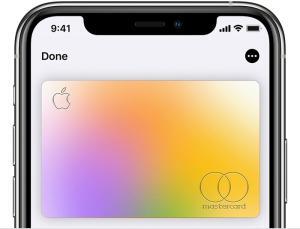
iPhone showing a colorful image of Apple Card.  

When your card is locked, no one can use it to make purchases. This gives you an added layer of protection while you wait for your new card.

How to Unlock Your Titanium Apple Card

If you’ve previously locked your Apple Card to prevent unauthorized use and have found your card, you will need to unlock your card.

  1. Open the Wallet app on your iPhone.
  2. Tap ‘Apple Card’.
  3. Tap the More button , then tap Card Details.
  4. Scroll down to the ‘Titanium Card’ section and tap on it.
  5. Toggle the switch next to Unlock Card, then follow the onscreen instructions.

Your Apple Card will now be unlocked and ready to use again.

How to request a replacement Apple card on iPhone and iPad

If your Apple Card is lost or stolen, but you still have your iPhone or iPad, you can use your device to request a replacement card

On your iPhone:

  1. Open the Wallet app on your iPhone.
  2. Tap on ‘Apple Card’.
  3. Tap the More button then tap Card Details
  4. Tap on ‘Request Replacement Card’.
  5. Select the reasons: Lost, Stolen, Damaged, or Other reasons.
  6. Tap on ‘Next’ and follow on-screen instructions to complete the process.

On your iPad:

  1. Launch the Settings App.
  2. Scroll down and select Wallet & Apple Pay.
  3. Tap Apple Card.
  4. Under Titanium Card, tap Request Replacement Card, then follow the instructions on your screen.

Apple will deactivate your lost or stolen card and issue you a new one. Once you’ve completed this process, no one can use the lost or stolen card, protecting you from unauthorized charges.

How to lock a participant’s titanium Apple Card

Locking a participant’s Apple Card refers to a situation where an Apple Card Family participant (either a co-owner or a participant under age 18) loses their physical Apple Card, and you, as the Apple Card Family organizer or co-owner, need to lock their card to prevent unauthorized use.

Here’s how to lock a participant’s Apple Card:

  1. Open the Wallet app on your iPhone.
  2. Tap ‘Apple Card’.
  3. Tap the More button , then tap Card Details
  4. Tap the participant’s name.
    Scroll down to Titanium Card and tap Lock Card.

This will prevent any use of the physical card until you unlock it again. Note that the participant can still use their digital Apple Card for transactions, including Apple Pay.

How to unlock a participant’s titanium Apple Card

If you use Apple Card Family and you’re the account owner or co-owner, you can unlock a participant’s titanium Apple Card.

Follow these steps to unlock a participant’s Apple Card:

  1. Open the Wallet app on your iPhone.
  2. Tap ‘Apple Card’.
  3. Tap the More button , then tap Card Details
  4. Tap the participant’s name.
  5. Scroll down to Titanium Card and tap Unlock Card, then follow the onscreen instructions.

The participant’s card is now unlocked and can be used for physical transactions again.

What to do if your iPhone and titanium Apple Card are both lost or stolen

If your iPhone and titanium Apple Card are both missing or stolen, you can call Goldman Sachs for a replacement Apple Card:

  • [(877) 255-5923](tel:(877) 255-5923)

If you’re a member of the Apple family, you’ve likely come across an Apple ID code–also known as a two-factor authentication code–at some point. But what if you receive one without requesting it? What’s happening behind the scenes, and is there cause for concern? Let’s dive into this topic and demystify the situation.

What’s an Apple ID Code?

First things first. An Apple ID code is a part of Apple’s two-factor authentication (2FA) system, designed to keep your account secure. When you sign in to your Apple ID on a new device or browser, Apple sends you a verification code. This code is required to access your account, effectively adding an extra layer of security.

Why are you getting an Apple ID code message?

So you’re going about your day, and _ping_–an Apple ID verification code appears on your screen, even though you weren’t trying to log into your account. Naturally, this might raise some alarm bells. Is it a glitch in the system? Has someone hacked your account?

Before you panic, let’s explore some possible explanations.

1. A Family Affair: Is a Loved One Using Your Number?

A less obvious but entirely legitimate reason for an unexpected Apple ID code could be a family member or close friend using your phone number as their trusted number. This is especially common in families where a parent’s phone number is linked to a child’s Apple ID account.

Apple’s two-factor authentication system lets you add a trusted phone number to your account. This number will receive verification codes when someone attempts to log in to the account from a new device or browser.

Let’s say you’ve given your child an iPad or iPhone, and to keep things secure, you’ve set up their Apple ID using your phone number as the trusted number. Now, whenever they try to sign in to their Apple ID, a verification code is sent to your phone.

This setup is quite handy for managing and securing your child’s Apple usage, but it can lead to some confusion if you’re not expecting to receive these codes.

2. Mistaken Identity

The most benign explanation is that someone entered your Apple ID–usually an email address–by mistake when trying to log into their account. The chances of this happening increase if your email address is common or straightforward.

3. Suspicious Activity

A more concerning possibility is that someone is attempting to gain unauthorized access to your account. If they’ve somehow obtained your Apple ID and password, they might be trying to log in. The unexpected verification code is, in this case, a sign that your 2FA is doing its job–keeping intruders out.

What to do if you get an unsolicited Apple ID code

Regardless of the cause, there are steps you should take if you receive an unexpected Apple ID verification code.

Don’t Share the Code

Firstly, and most importantly, do not share the code with anyone. Even if you get a call or an email from someone claiming to be from Apple, never give out your verification code. Apple will never ask for this information.

The next thing to do is check with your family members. Ask them if they’ve been trying to access their Apple accounts. This could quickly solve the mystery, and you’ll know there’s nothing to worry about.

However, remember that every Apple ID should ideally have its own trusted number, usually the number of the device being used. If your child is old enough and has their own phone, it might be time to update their trusted number to their own. This way, they’ll receive their verification codes directly, and you won’t be confused by unexpected codes.

Apple makes it easy to change the trusted phone number:

In iOS or iPadOS

go to Settings > account name > Password & Security, then tap _Edit_next to the Trusted Phone Numbers label. Tap the red remove button to the number’s list and then confirm removal.

In macOS 10.14 Mojave or earlier

Go to System Preferences > iCloud > Account Details > Security, select a phone number, and click the minus (-) button to remove it. Confirm its removal by clicking Remove.

In macOS 10.15 Catalina or later

Go to System Preferences > Apple ID > Password & Security, click Edit next to the Trusted Phone Numbers label, select a phone number, and then click the minus (-) button to remove it. Confirm its removal by clicking Remove.

At the Apple ID site

Log into your account and then click the Edit button next to the Security section, click the "x" next to a trusted number to remove it, and finally confirm by clicking Remove.

After completing the above steps, click ‘Add a Trusted Phone Number,’ then enter the new number.

Check Your Account Activity

Next, head over to your Apple ID account page and check for any signs of suspicious activity. Look at your devices list and remove any you don’t recognize.

Change Your Password

If you suspect foul play, change your Apple ID password immediately. Make sure your new password is strong and unique–avoid anything obvious like "123456" or "password."

On iPhone

  1. Launch the Settings app on your iPhone.
  2. Tap on your profile at the top of the screen.
  3. Tap on** Password & Security**.
  4. Tap on Change Password.
  5. Enter your iPhone passcode.
  6. Enter your new Apple ID password and then re-enter to verify.
  7. Tap Change in the top-right corner.

On Mac

You can also change your Apple ID password from your Mac.

  1. Head over to the Apple menu and choose System Settings (System Preferences).
  2. Click on your Apple ID name at the top of the list in the left sidebar (or click the Apple ID icon).
  3. Select Password & Security.
  4. Click on Change Password. You will enter your Mac user password and clickAllow.
  5. Enter your new password and then enter it again to verify. Click Change.

You can also change your Apple ID password from any browser by going to the Apple ID account webpage.

Contact Apple Support

If you’re still concerned after taking these steps, don’t hesitate to contact Apple Support. They can assist you further and provide peace of mind.

The Takeaway

While receiving an unexpected Apple ID code can be disconcerting, it’s essential to remember that it’s not necessarily a sign of a security breach. It could merely be a case of mistaken identity. However, it’s always wise to err on the side of caution. By following the steps outlined above, you can ensure that your account remains secure.

Remember, your Apple ID is the gateway to a host of services–iTunes, iCloud, the App Store, and more. Keeping it safe should be a priority. Always be vigilant, regularly update your passwords, and keep your devices secure. In the world of online security, an ounce of prevention is worth a pound of cure.

Apple has been a pioneer in technology, known for its top-notch products, impeccable design, and a relentless focus on user privacy. One essential feature that ties everything together is the Apple ID. This unique identifier is the cornerstone of an Apple user’s experience, granting access to a wide range of Apple services. While sharing an Apple ID may seem like a convenient solution for friends or family, there are numerous disadvantages of sharing Apple ID. In this comprehensive guide, we’ll dive deep into each of these downsides, so you can make an informed decision on whether or not to share your Apple ID.

Your Apple ID is your digital passport to the world of Apple services, including iCloud, iTunes, the App Store, and more. While it’s tempting to share your Apple ID with friends, family members, or colleagues to pool resources, this practice comes with significant drawbacks. In this article, we will discuss each disadvantage in detail, so you can make an informed decision about whether sharing your Apple ID is worth the risks.

1. Privacy Concerns

One of the most significant disadvantages of sharing Apple ID is the erosion of privacy. When you share your Apple ID with someone else, they have access to your:

  • Emails
  • Text messages (iMessage)
  • Contacts
  • Calendar events
  • Photos and videos
  • Notes
  • Reminders
  • And more

In short, by sharing your Apple ID, you are essentially granting access to your entire digital life. This can lead to uncomfortable situations and potential breaches of trust, as private conversations, sensitive information, and personal media files are exposed to someone else.

2. Loss of Personalization

When multiple users share a single Apple ID, the personalization that Apple’s ecosystem is known for can be compromised. Here are a few examples:

  • Music and podcast recommendations: Apple Music and Podcasts use your listening habits to suggest new content tailored to your interests. Sharing an Apple ID means your recommendations will be based on the combined listening habits of all users, diluting the accuracy of these suggestions.
  • Siri and voice recognition: Apple devices learn to recognize your voice over time, allowing Siri to better understand and respond to your commands. When multiple users share an Apple ID, Siri’s voice recognition accuracy can be compromised, leading to misinterpretations and frustrations.
  • App preferences: Many apps save user-specific settings and preferences within the app. Sharing an Apple ID may cause these preferences to be overwritten by other users, making it difficult to maintain a consistent user experience.

3. Security Risks

Sharing your Apple ID can expose you to significant security risks, including unauthorized access to your account, identity theft, and more. Here are some potential scenarios:

  • Account takeover: If someone else has your Apple ID and password, they can change your account information, lock you out, and take control of your account.

  • Identity theft: A person with access to your Apple ID can use your personal information to impersonate you or commit fraud in your name. This could include opening new lines of credit, making unauthorized purchases, or even gaining access to other accounts using password reset features.

  • Phishing and scams: When multiple people share an Apple ID, it’s easier for phishing emails and scams to slip through the cracks. Users might inadvertently click on malicious links or provide sensitive information to scammers, putting everyone’s data at risk.

  • Malware: Sharing an Apple ID increases the chances that a user may unknowingly download and install a malicious app on a device, infecting it with malware. This could lead to stolen data, compromised device functionality, or even the spreading of malware to other devices within the shared Apple ID ecosystem.

4. Purchasing and Subscription Complications

Another significant disadvantage of sharing Apple ID is the potential for complications when it comes to purchasing apps, content, and subscriptions. Here are some common issues:

  • Shared payment method: When you share an Apple ID, all users are tied to a single payment method. This can lead to disputes over who pays for what, unexpected charges, or even unauthorized purchases.
  • In-app purchases: In-app purchases made by one user will be available to all users sharing the same Apple ID, which can lead to confusion or accidental usage of paid content.
  • Subscription management: Subscription services like Apple Music, Apple News , and iCloud storage are linked to an individual Apple ID. Sharing an Apple ID means that all users will have access to the same subscriptions, making it difficult to manage and allocate costs fairly.

5. iCloud Storage Limitations

iCloud storage is an essential part of the Apple ecosystem, allowing you to back up your data, sync your devices, and access your files from anywhere. However, sharing an Apple ID can lead to iCloud storage limitations:

  • Shared storage space: All users sharing an Apple ID will be drawing from the same iCloud storage allotment. This can lead to a shortage of space, forcing users to purchase additional storage or risk losing their data.
  • Data mingling: When multiple users share an Apple ID, their data will be mingled within iCloud. This can create confusion, as files and backups from different devices become intertwined and difficult to manage.

6. Find My Device Implications

Apple’s Find My feature is designed to help you locate your lost or stolen Apple devices. However, sharing an Apple ID can lead to unintended consequences:

  • Misplaced devices: When multiple users share an Apple ID, the Find My app will display the location of all devices associated with that account. This can lead to confusion, as it may be unclear which device belongs to whom.
  • Privacy invasion: A person with access to your shared Apple ID can use the Find My feature to track your movements without your knowledge or consent, violating your privacy.

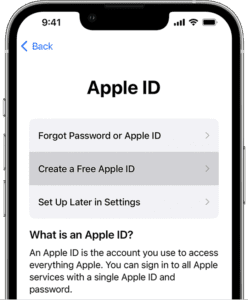
Create an Apple ID when setting up a new iPhone  

Family Sharing: A Better Alternative

Instead of sharing an Apple ID, a better solution is to use Apple’s Family Sharing feature. Family Sharing allows up to six family members to share access to Apple services, including:

  • Apple Music
  • Apple TV
  • Apple News
  • Apple Arcade
  • iCloud storage
  • App Store purchases
  • iTunes purchases

Family Sharing also includes parental controls and location sharing features, making it a safer and more practical alternative to sharing an Apple ID. You can learn more about setting up Family Sharing by visiting Apple’s official support page.

Conclusion

The disadvantages of sharing Apple ID are numerous, ranging from privacy concerns to security risks and complications with purchases and subscriptions. When you share an Apple ID, you’re exposing your personal information, diluting the personalization features of your Apple devices, and potentially putting your digital life at risk.

Instead of sharing your Apple ID, consider using Apple’s Family Sharing feature, which offers a more secure and convenient way to share access to Apple services among family members. Family Sharing preserves individual privacy, allows for personalized experiences, and provides parental controls to ensure a safer digital environment for everyone involved.

In conclusion, the risks and disadvantages of sharing Apple ID far outweigh any perceived benefits. By understanding these downsides and exploring alternatives like Family Sharing, you can protect your privacy, maintain the integrity of your personal data, and continue enjoying the seamless experience that Apple’s ecosystem has to offer.

As the popularity of Apple AirPods Max continues to grow, so does the likelihood of encountering counterfeit versions of these high-end headphones. Not only can fake AirPods Max be a waste of money, but they can also be potentially dangerous if they have not gone through the rigorous safety testing that genuine Apple products undergo. Fortunately, there are ways to spot fake AirPods Max before you make a purchase. Here are some tips to help you distinguish between genuine and counterfeit AirPods Max.

1. Inspect The Packaging

The first thing to look for when buying AirPods Max is the packaging. Apple products usually come in high-quality packaging with attention to detail. If the packaging looks cheaply made, with flimsy materials or poor printing quality, it’s a red flag that the product inside might be fake.

Check the labels and text for any spelling mistakes or inconsistencies. Apple packaging always has a very clean and precise look, with no grammatical or spelling errors. If you see any discrepancies, it’s likely that the product is not genuine.

2. Check The Design And Build Quality

The materials used in the construction of genuine AirPods Max are of a very high quality. They typically feature stainless steel and anodized aluminum, which give them a sleek, premium appearance. In contrast, counterfeit versions uses cheaper materials that lack the same durability and weight.

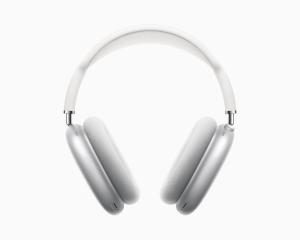
AirPods Max in silver.  

One of the most obvious indicators that a pair of AirPods Max is counterfeit is the positioning and quality of the Apple logo. On genuine AirPods Max, the logo is perfectly centered and has a subtle shine when it catches the light. A fake pair usually have a logo that is slightly off-center or has a different shine altogether.

The ear cups on genuine AirPods Max are designed to provide a comfortable, breathable experience, with a mesh canopy and knitted textile cover. Counterfeit AirPods Max usually have a different type of ear cup or cover that doesn’t match the genuine product, which can impact both comfort and sound quality.

Close-up of AirPods Max ear cushion.  
Dave Johnson/GeeksModo

The headband on genuine AirPods Max is made from a breathable knit mesh material that allows for easy adjustment and a comfortable fit. Counterfeit versions features a different type of headband material or design, which can lead to discomfort and poor fit.

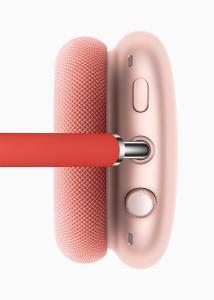
Another way to tell if a pair of AirPods Max is genuine is by examining the controls. Genuine AirPods Max have a Digital Crown to provide physical controls. The Digital Crown can be used to turn the volume up or down, skip between tracks, answer phone calls, and activate Siri through both rotating and pressing gestures.

The Digital Crown and noise control button on AirPods Max.  
Dave Johnson/GeeksModo

The button next to the Digital Crown allows Active Noise Cancellation to be controlled, switching between ANC and Transparency mode.

Turning the Digital Crown controls volume, pressing once answers a call or plays/pauses a song, pressing twice skips forward one track, pressing three times skips back one track, and pressing and holding activates Siri.

On genuine AirPods Max, the controls are well-crafted and have a satisfying click when pressed. In contrast, counterfeit versions may feel cheap or poorly constructed.

Genuine AirPods Max have a Lightning port for charging, which is compatible with Apple devices. Fake AirPods Max features a different type of charging port that is not compatible with Apple devices, causing a lot of inconvenience.

When it comes to color, genuine AirPods Max come in a range of options, including silver, space gray, sky blue, green, and pink. If you come across a pair in a different shade, it’s a sign that they are counterfeit.

Genuine AirPods Max are relatively heavy, weighing around 385 grams due to the high-quality materials used in their construction. If a pair of AirPods Max feels noticeably lighter or heavier than this, it could be a sign that they are fake.

The size and dimensions of genuine AirPods Max are very specific and can be measured and compared to a counterfeit pair. If the dimensions of a pair of AirPods Max don’t match those of a genuine product, it’s a sure sign that they are fake.

Genuine AirPods Max have an LED light on the bottom of the right ear cup, which can be used to determine charge level when pressing the power button while the AirPods Max are charging. At above 95 percent, the light is green, at below 95 percent charge, it’s amber. Pressing the button on the AirPods Max when the headphones are not charging shows a green light if there’s more than 15 percent battery life remaining, while it shows an amber light if there’s less than 15 percent charge. Fake AirPods Max may not have this feature or have a different type of LED light that doesn’t match the genuine product.

3. Check AirPods Max Smart Case

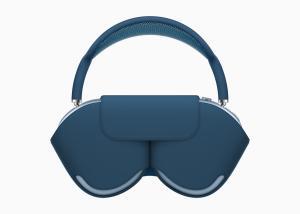
Apple ships AirPods Max with a Smart Case that wraps around the ear cups but that does not provide protection for the headband. The case is designed to put the AirPods Max into an ultra low power state that preserves battery life, utilizing magnets. The Smart Case is made of high-quality microfiber material that feels soft to the touch. If the material quality feels cheap, rough or looks like plastic, it might be a fake.

Sky blue AirPods Max stored in matching Smart Case.  
Dave Johnson/GeeksModo

4. Check The Sound Quality

The sound quality of AirPods Max is another distinguishing factor between genuine and counterfeit products. Genuine AirPods Max pair high-fidelity audio with Active Noise Cancellation for what Apple describes as an "unparalleled listening experience."

There’s a custom-built driver inside the AirPods Max that produces ultra-low distortion sound across the audible range. Apple promises rich bass, accurate mids, and crisp, clean highs, even at the highest volumes.

In contrast, fake AirPods Max may have poor sound quality, with muffled or distorted sound.

When trying out AirPods Max, play music with a wide range of frequencies, including bass-heavy tracks, to test the quality of the sound. Genuine AirPods Max have a balanced sound with excellent bass and treble response, while counterfeit versions may have unbalanced or muffled sound quality.

5. Check The Connectivity

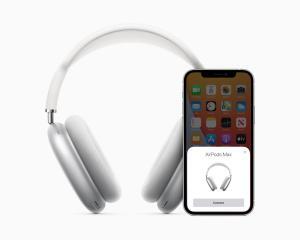
Like other AirPods, AirPods Max connect automatically to other Apple devices with one-tap setup and pairing capabilities. Connecting AirPods Max to an iPhone or iPad, for example, is as simple as holding the headphones near the device and then tapping the Connect button. If you have trouble connecting the headphones to your device, it could be a sign that the product is not genuine.

AirPods Max paired up with iPhone 12.
Dave Johnson/GeeksModo

One of the key features of AirPods Max is their seamless connectivity with Apple devices. Automatic device switching lets genuine AirPods Max automatically switch between iPhone, iPad, Mac, and Apple Watch as the devices are used, with no need to access Bluetooth controls to swap devices.

6. Other Sensors

Sensors in the AirPods Max allow them to determine when they’re on the head, so when the headphones are removed, audio pauses, and when placed back on the head, audio resumes. Pausing the music can also be done by lifting up an ear cup.

In contrast, fake AirPods Max are often made with cheaper materials and do not undergo the same rigorous quality control standards as the original products. As a result, the sensors on fake AirPods Max may not work at all, or they may not work as well as the sensors on the original headphones.

Additionally, counterfeit AirPods Max may not have all of the sensors that the original headphones have, or the sensors may be placed in different locations. This can affect the overall performance and user experience of the headphones.

7. Check Battery Life

Genuine AirPods Max have a battery life of up to 20 hours of listening to music, watching movies, or talking on the phone with both Active Noise Cancellation and spatial audio enabled.

AirPods Max charge with a Lightning cable, and a five-minute charge provides 1.5 hours of listening time. It takes approximately two hours for the headphones to charge to full. The AirPods Max has no power button, with Apple instead relying on different power modes to preserve battery life.

Counterfeit AirPods Max may have a shorter battery life or may not hold a charge as well as the genuine product. To test the battery life, charge the AirPods Max fully and use them continuously for a few hours to see if they last as long as they should.

8. Check The Price

The price of AirPods Max is another important factor to consider when determining whether they are genuine or counterfeit. Genuine AirPods Max are priced at $549.

With a $549 price tag, AirPods Max are much more expensive than fake AirPods Max. If you find a deal that seems too good to be true, it probably is. Counterfeit products are often sold at a much lower price than the genuine product, so be cautious of any seller offering a significant discount.

9. Verify The Serial Number

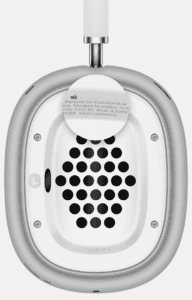
The serial number of AirPods Max can also provide valuable information about their authenticity. Genuine AirPods Max have a unique serial number printed on the inside of the left ear cushion, and it can be verified through Apple’s website or customer service.

To see the serial number of AirPods Max, simply detach the left magnetic ear cushion. If the serial number is missing, the AirPods Max are fake.

Serial number underneath the left cushion on AirPods Max
Dave Johnson/GeeksModo

Once you’ve obtained the serial number, the most foolproof way to tell if AirPods Max are fake is to go directly to the source: Apple.

  • In your web browser, go to Apple’s coverage checking tool.
  • Enter the serial number, the CAPTCHA, and click Continue.
  • If the tool returns information for that serial number (especially a valid purchased date), the AirPods Max are real. If the serial number cannot be verified, the AirPods Max are fake.

10. Check Accessories

Genuine AirPods Max come with a few accessories, including a Smart Case and a Lightning to USB-C cable for charging. If the packaging contains any additional accessories or missing some essential accessories, it could be a sign of a counterfeit product.

11. Check The Retailer Reputation

Purchasing AirPods Max from an authorized retailer is the best way to ensure that you are getting a genuine product. Apple products are sold through a network of authorized resellers and retailers, and it’s important to purchase from a reputable source. AirPods Max can be purchased from the online Apple Store or third-party retailers like Amazon.

Avoid buying from unlicensed third-party sellers or unknown websites, as they are more likely to sell counterfeit products.

12. Trust your Instincts

If something about the AirPods Max seems off, trust your instincts. If the price is too good to be true, or if the product seems poorly made or constructed, it could be a fake. It’s better to be safe than sorry when it comes to purchasing expensive products.

In conclusion, fake AirPods Max are becoming increasingly common, and it’s essential to be vigilant when purchasing these high-end headphones. By following these tips, you can distinguish between genuine and counterfeit AirPods Max and avoid wasting your money on fake products. Always purchase from authorized retailers and double-check the packaging, build quality, sound quality, connectivity, battery life, serial number, accessories, and price before making a purchase.

Apple and Samsung are two of the biggest players in the tech industry. While they are rivals in many ways, it may surprise some to know that Apple uses Samsung parts in many of their products. In fact, Samsung is one of the main suppliers of components for Apple devices, including the iPhone and iPad. So why does Apple rely on Samsung, a company that is often viewed as a competitor, for essential parts? In this article, we’ll explore the reasons behind this decision.

First, it’s important to understand that Samsung is one of the largest manufacturers of electronic components in the world. They produce a wide range of components, including memory chips, processors, displays, and batteries. Their production capacity is massive, and they have the ability to produce high-quality components at a large scale. This makes them an attractive supplier for many tech companies, including Apple.

One of the main reasons why Apple uses Samsung parts is simply because they are the best available. Samsung is known for producing high-quality components that are reliable and efficient. Apple is known for being extremely selective about the components they use in their devices, and they are willing to pay a premium for the best quality. Samsung has a reputation for producing some of the best components in the industry, so it makes sense that Apple would want to use their parts.

Another reason why Apple uses Samsung parts is because of their long-standing relationship. Despite being competitors in many ways, Apple and Samsung have a long history of working together. In fact, Samsung has been a major supplier of components for Apple since the early days of the iPhone. Over the years, the two companies have developed a close working relationship that has helped them both to succeed. They have a deep understanding of each other’s strengths and weaknesses, and they work together to create the best possible products.

In addition to their close relationship, Samsung is also one of the few companies that has the ability to produce the high-quality components that Apple requires. Apple is known for being extremely demanding when it comes to the quality of the components they use in their devices. They require components that are not only reliable and efficient, but also meet strict environmental and social responsibility standards. Samsung has the production capacity, technology, and expertise to meet these demands, which makes them a valuable supplier for Apple.

Another factor that makes Samsung an attractive supplier for Apple is their vertical integration. Samsung is not just a component manufacturer, but also a producer of finished products. This means that they have a deep understanding of how components work together to create a final product. They are able to optimize their components to work seamlessly with other components in a device, which can result in better performance and reliability. This is particularly important for Apple, which is known for producing tightly integrated devices that are optimized for performance and efficiency.

It’s also worth noting that Samsung is a major player in the smartphone market, which is one of Apple’s biggest markets. While they may be competitors in this space, Samsung has a deep understanding of the smartphone market that can be valuable to Apple. They have insights into consumer preferences, emerging technologies, and market trends that can help Apple to stay ahead of the curve. By working closely with Samsung, Apple can gain access to these insights and use them to create better products.

In addition, Apple’s partnership with Samsung allows the company to access cutting-edge technology that it might not be able to develop on its own. Samsung invests heavily in research and development, and the company has been at the forefront of developing new technologies for smartphones. For example, Samsung was the first company to produce a foldable smartphone, and the company’s Exynos processors are some of the most advanced on the market. By partnering with Samsung, Apple can access these technologies and incorporate them into its own products.

Moreover, Samsung is one of the few companies that can produce the volume of components Apple needs. Apple sells millions of iPhones every year, and the company needs a reliable supplier that can provide components in large quantities. Samsung is one of the few companies that can meet Apple’s demand for parts. In fact, Samsung is the world’s largest manufacturer of memory chips, which are used in a wide range of devices, including smartphones, laptops, and servers. By partnering with Samsung, Apple can ensure that it has a steady supply of components to meet its production needs.

It’s worth noting that Apple does not rely solely on Samsung for their components. They also use components from other suppliers, including LG, Toshiba, and Sharp. This helps to ensure that they are not too reliant on any one supplier, and it gives them access to a wider range of components and technologies.

It’s important to remember that Apple is a business, and their decisions are ultimately driven by financial considerations. While they are willing to pay a premium for high-quality components, they are also looking for suppliers that can provide them with the best value. Samsung is able to provide Apple with high-quality components at a competitive price, which makes them an attractive supplier. By using Samsung parts, Apple can keep their costs down while still producing high-quality devices that meet the demands of their customers.

However, the relationship between Apple and Samsung is not without its challenges. The two companies have been involved in several legal battles over the years, with Apple accusing Samsung of copying its designs and infringing on its patents. In 2018, the two companies settled a longstanding legal dispute over alleged patent infringement, with Samsung agreeing to pay Apple $539 million. Despite these legal battles, however, the two companies continue to do business with one another.

Another potential issue is the risk of Samsung using its position as a supplier to gain an advantage over Apple. Samsung has been accused of this in the past, with some analysts speculating that the company may use its access to Apple’s designs and technologies to inform its own products. However, there is no evidence to suggest that Samsung has done this, and Apple likely has measures in place to protect its intellectual property.

In conclusion, while it may seem strange that Apple, a company that is often viewed as a competitor of Samsung, relies on Samsung for many of their components, there are actually many good reasons for this decision. Samsung is a high-quality component supplier with a long-standing relationship with Apple, production capacity and expertise that meet Apple’s demanding standards, vertical integration that allows for better optimization, insights into the smartphone market that can be valuable to Apple, and competitive pricing that helps to keep Apple’s costs down. While there are potential risks associated with this relationship, it seems that the benefits outweigh the potential downsides. Ultimately, the decision to use Samsung parts is just one of many strategic decisions that Apple makes in order to create the best possible products for their customers.

In recent years, it has become increasingly evident that iPhones are much cheaper in China than in other parts of the world. The price difference has sparked much speculation and debate, with some people attributing the lower cost to China’s large market share, while others suggest that it is due to the lower labor and production costs in China. In this article, we will explore the various reasons why iPhones are cheaper in China.

First and foremost, it is important to note that Apple’s pricing strategy for its products varies from country to country. The company takes into account a variety of factors when determining the pricing for its products, including currency exchange rates, local taxes and tariffs, shipping costs, and more. This means that the price of an iPhone in China may not necessarily reflect the price of the same iPhone in other parts of the world.

One of the primary reasons why iPhones are cheaper in China is because of the local competition. The Chinese smartphone market is highly competitive, with numerous brands vying for a share of the market. This has led to intense price competition, with many smartphone brands offering devices at lower prices than Apple. To remain competitive, Apple has had to lower its prices in China, making its devices more affordable for Chinese consumers.

Another reason why iPhones are cheaper in China is due to the lower labor and production costs in the country. China has a large pool of skilled labor, which allows Apple to manufacture its devices at a lower cost. Additionally, China offers significant tax breaks and subsidies to foreign companies that invest in the country. These incentives have allowed Apple to establish a significant manufacturing presence in China, which has helped to drive down the cost of production.

It is also worth noting that Apple has made a concerted effort to increase its sales in China in recent years. China is a massive market, and Apple has recognized the potential for growth in the country. To capitalize on this, the company has invested heavily in marketing and advertising campaigns in China, as well as in the development of Chinese-specific features for its devices. By increasing its sales volume in China, Apple has been able to lower the cost of its devices, making them more affordable for Chinese consumers.

Finally, it is worth noting that there are some restrictions on the import of foreign electronics into China. These restrictions can make it difficult for foreign companies to sell their products in China, and can drive up the cost of imported goods. However, Apple has been able to navigate these restrictions and establish a strong presence in the Chinese market, which has helped to keep the cost of its devices lower than in other parts of the world.

In conclusion, there are several reasons why iPhones are cheaper in China. These include local competition, lower labor and production costs, Apple’s investment in the Chinese market, and restrictions on the import of foreign electronics. While the exact pricing strategy for Apple’s products may vary from country to country, it is clear that the company has recognized the importance of the Chinese market, and has taken steps to make its devices more affordable for Chinese consumers.