Got a tip for us?

A lot of the day-to-day tasks on your iPad revolve around functional speakers. When your iPad speakers aren’t working, you can’t enjoy music, talk to someone on speaker during a FaceTime call, or hear the alerts you receive. This problem can be incredibly frustrating, but it can also be fixed. In this article, I’ll explain what to do if your iPad speaker sounds muffled!

Software Vs. Hardware Issues

A muffled iPad speaker can be the result of a software problem or a hardware problem. The software tells your iPad what sounds to play and when to play them. The hardware (the physical speakers) then plays the noise so you can hear it.

We can’t be sure what type of problem this is yet, so we’ll start with the software troubleshooting steps. If those steps don’t fix your iPad speaker, we’ll recommend a few great repair options!

Is Your iPad Set To Silent?

When your iPad is in silent mode, the speaker won’t make any noise when you receive a notification. To check, open Control Center and look for the silent mode icon — if it’s turned on, tap it to turn it off. You can also press and hold the Volume Down button to toggle silent mode.

Turn The Volume All The Way Up

If the volume on your iPad is low, it may sound like the speakers are muffled when you receive a FaceTime call or notification.

To turn up the volume on your iPad, unlock it and press the volume up button on the top or side of your iPad (location varies by model) until the volume is all the way up.

You can also adjust the volume on your iPad by going to Settings > Sounds and dragging the volume slider all the way to the right.

If you want to have the option to turn up the volume using the buttons on your iPad, make sure Change with Buttons is turned on under Settings > Sounds.

Take Off Your iPad Case

If you have a bulky case for your iPad, or if the case was put on upside down, it could make the speaker sound muffled. Try taking your iPad out of its case and playing a sound.

Clean Out Any Gunk From The Speaker

Your iPad speakers can quickly get filled with lint, dirt, or other debris, especially if it has been sitting in your bag all day. Try wiping off the speaker with a microfiber cloth. For more compacted gunk or debris, use an anti-static or an unused toothbrush to clean out your speaker.

Back Up Your iPad And Put It In Recovery Mode

Before you run to your local Apple Store to get a hardware repair done, let’s make sure we’re absolutely certain that the speaker is broken. A recovery mode restore is the last step you can take to completely rule out any type of software problem causing your iPad speaker to sound muffled.

First, backup your iPad. A recovery mode restore erases then reloads all the code on your iPad. You’ll want a recent iPad backup so you don’t lose your contacts, photos, messages, and more.

You can back up your iPad using Finder on a Mac, the Apple Devices app on a PC, or iCloud.

After you’ve backed up your iPad, put your iPad in recovery mode by connecting it to your computer and following recovery mode steps for your specific model.

Before checking if your speakers work, go through steps 1-4 again and then try to play music or use your speaker on a FaceTime call. If the speaker still sounds muffled, it’s time to look into repair options.

Repairing Your iPad Speaker

Apple offers repairs for iPad speakers. You can schedule an appointment at the Genius Bar or use their mail-in service by visiting their support center.

If you have an older iPad, you may want to consider upgrading to a new one instead of paying out of pocket to repair your old one. New iPads have better speaker systems that are great for listening to music or streaming videos.

Can You Hear Me Now?

Now that you’ve reached the end of the article, we’ve either solved your speaker problem or at least figured out that you need a repair. If your problem was fixed, let us know which step helped you figure it out — this might help others with the same problem. Regardless, if you have any other questions, leave them in the comments below!

Tag: Sound

Walmart has more than 10,800 stores and clubs worldwide. It is the world’s largest retailer. As of now, Walmart stores do not accept Apple Pay at in-store checkouts. Walmart accepts cards from Visa, Mastercard, American Express and Discover. A lot of major retailers, stores, restaurants, and shops accept Apple Pay, but unfortunately, Walmart is not one of them.

It seems that Walmart does not accept Apple Pay because they want people to use their own mobile payment system, Walmart Pay. This means that Walmart does not also accept Google Wallet and Samsung Pay. It further seems that, for now, Walmart is committed to its own Walmart Pay platform, which is a QR code-based system designed exclusively for Walmart shoppers.

The only mobile payment that Walmart takes is Walmart Pay. You can, however, use Walmart Pay with your iPhone. Here is how:

Using your iPhone to make purchases at Walmart

  1. Walmart Pay is a feature in the Walmart app. Download the Walmart app. Open the App Store app on your iPhone and then tap the Search icon and find the Walmart app and tap Get and download it.
  2. Open the Walmart app on your iPhone.
  3. Go to Services > Walmart Pay.
  4. Tap Set Up Walmart Pay.
  5. And follow the onscreen instructions and register your card. And your Walmart Pay is ready to use when you go to your Walmart store next time.
  6. To use the app, you need to scan a QR code at the register.

Furthermore, it seems that Walmart has no plans to accept Apple Pay.

You can use your Apple Card at Walmart.

Apple Pay is Apple’s payment service that lets you use your iPhone or Apple Watch to make purchases.

Finding Apple Pay places

Do you avoid stores that do not accept Apple Pay? Do you want to know which stores take Apple Pay before you go? Then there is an easy want to do that. Here is how:

  1. On your iOS or iPadOS device, open Apple Maps.
  2. Find the place you want to go.
  3. Tap the result you want to check. An info card will be displayed.
  4. Scroll down and find the “Useful to Know” section.
  5. If the place takes Apple Pay, it will say “Accepts Apple Pay”.

Costco, one of the world’s largest retailers, accepts Apple Pay.

In conclusion, Apple Pay is not accepted at all Walmart locations. How long will Walmart refuse Apple Pay? We do not know. But we know that Walmart may change this in the future. Because this policy does not attract the tech-savvy customers. We will update this article if Walmart changes this.

Apple Pay launched in October 2014.

Phone spam and scam are on the rise, with no signs of stopping. Luckily, you can take a few actions on your own to get rid of spam calls. For instance, you can set your iPhone or Android phone to block specific phone numbers. Mobile carriers offer blocking tools too. On top of that, you can register your mobile and landline phone numbers with the FTC’s Do Not Call Registry, though that won’t stop scammers and disreputable telemarketers from calling you.

The best option is to install a call blocking application on the smartphone to automatically block scammers, telemarketers, robocalls, and other spam. Many call blockers strive to protect you from spam and identify unknown callers. Let’s get a closer look at the best call blocking apps for iPhone and Android smartphones.

#1 REKK Call Blocker

REKK is relatively new on the market, but it has already gained trust among iPhone and Android users. It’s a powerful solution for identifying unknown callers with an option to block unwanted phone numbers. The database with spam numbers is frequently updated, which makes REKK a perfect tool for identifying spam. Besides, the app allows you to block incoming messages with specific keywords, like "special offer", "sale", and others. Thanks to this feature, you’ll forget about annoying SMS during Black Friday.

Additionally, you can use a reverse number lookup to check data about the caller if you’ve missed a call, including the company, its category, location, official website, and additional contact information. To make the app work, you’ll need to configure the app in the settings of your smartphone. The built-in instruction in the app will help you set up the call blocking feature.

REKK is compatible with iOS and Android

#2 RoboKiller: Block Spam Calls

With RoboKiller, you can eliminate up to 99% of spam calls coming to your phone number. The utility helps you filter and control incoming phone calls by automatically blocking and adding to the blocklist any unwanted caller. Unwanted callers are blocked without bothering you. On top of that, you can keep essential contacts or any new number safe by adding it to your Allow List. So the app will never block important callers by mistake. If you’re expecting an important call from an unknown number, you can temporarily pause the call blocking feature.

RoboKiller allows you to recognize SMS spam by notifying you of unwanted text messages. It’s also possible to report any specific number or an unknown caller to RobKiller’s spam blocker and protect other users from spammers. RoboKiller is free to download. A subscription is required to use the service, but you can try it out completely free for seven days.

RoboKiller is compatible with iOS and Android.

#3 Truecaller

Truecaller is among the most-used free spam blocking apps on the market with many valuable features. It’s a multifunctional app that allows you to identify and block spam calls or SMS, search for unknown numbers, call and chat with friends. To help you avoid spam calls and text messages, Truecaller identifies spam automatically before you pick up and filters unwanted callers. Besides, the app provides users with the reverse lookup feature to search for any spam number in the app’s database to check who its owner is.

Other than call blocking and identification, the app comes with in-built call dialer and messenger. You can call your friends directly from the app and chat with them at no cost. The app is free, but you get more features with the premium subscription: know who viewed your profile, get 30 contact requests per month, and remove all ads.

You can install the app on Android and iOS smartphones.

#4 Hiya: Spam Phone Call Blocker

Hiya is one of the most-used spam blocking tools on the market. It comes in very handy when you’re looking for reliable protection from telemarketers, robocalls, fraud calls like neighbour spoofing, and debt collectors. The app identifies and blocks spam calls automatically and allows you to get rid of the "neighbor spoofing" calls from numbers that look similar to yours. The global database will let you know who’s calling you, where they work and if they make annoying calls to other Hiya users.

Additionally, the app provides a number lookup that lets you check any phone number and find out the caller’s true name. The app is paid and offers monthly and yearly subscriptions.

Download the app from Google Play or App Store.

#5 Robo Shield Spam Call Blocker

Robo Shield is a perfect tool to stop annoying spam calls. The app was developed by Pango, a mobile security company trusted by over 650 million users worldwide. Robo Shield allows you to create blocklists of your contacts or block callers by categories such as spam, scam, political, telemarketers, etc. Unlike other apps from the list, this service updates its spam number database every six minutes.

With Robo Shield, you can quickly look up any unknown number and instantly know if you have been contacted by scammers, spammers, telemarketers, etc. The app comes with a monthly subscription that costs $2.99/month.

The app is compatible with iOS and Android.

#6 Nomorobo Robocall Blocking

Nomorobo is one of the best call blockers that can bring peace and quiet back to your life. The app protects users from annoying robocalls, telemarketers, spam texts, and phone scammers. It comes with real-time protection from over 3,200,000 spam numbers and identifies over 1,500 robocallers daily. On top of that, Nomorobo protects you from text spam and phishing attempts. It also allows you to send spam calls directly to voicemail.

The app is privacy-friendly and never accesses your call logs. It has already stopped 1.5 billion robocalls since 2013 and is trusted by over 2,500,000 people every day. Nomorobo provides a 14-day free trial for you to try the app and decide if it meets your needs.

You can download the app from App Store and Google Play.

#7 AT&T Call Protect

This is a well-received tool that may benefit AT&T network users. The app provides you with 24/7 automatic fraud call blocking and detects spam before your phone even rings. It sends unknown callers to voicemail and warns you of telemarketers, nonprofits, surveys, account services, private or political callers. You can also add particular callers to your personal blocklist.

AT&T Call Protect isn’t just a call blocker app. It is a community of people who help one another get rid of spam and report spam numbers. The app comes with a premium subscription that offers a caller ID feature and reverse number lookup.

You can download the app from the App Store and Google Play.

You can turn off Google AI overview. Here’s How to do it on iPhone, iPad or Mac

Annoyed by AI summaries taking over your search results page? There’s no official way to turn off Google AI overview on iPhone or Mac, but there are a few tricks you can try to stop seeing them so often.

Google’s AI Overviews have largely taken over Search at this point. The feature, which summarizes information and answers questions without requiring you to click on any links, has decimated web traffic for publishers, and produced numerous factual errors. Google has since upgraded AI Overviews with Gemini 3 as the default model globally, and is now merging the feature with a deeper conversational AI Mode—making overviews even more pervasive. I also just find the feature intrusive.

When it comes to AI products, it’s hard to tell if you’re dealing with a work in progress or a finished product. This is why I’ve invested so much time in trying to remove Google AI overviews from my web searches. Unfortunately, there’s no official way to disable them. Still, I’ve discovered that a few tweaks can make Google’s AI-infused answers a little less prominent.


How to turn off Google AI Overviews on iPhone and Mac

As mentioned above, you can’t really turn off AI Overviews — at least not officially. But you can hide and avoid them. Here’s how.

1. Use ‘-AI’ in your search query

Of all the ways to remove AI Overviews from Google, this one is my favorite because it’s the easiest and works on iPhone, iPad, and Mac. All you have to do is use the NOT () operator that modifies search to exclude certain parameters. In this example, searching who owns Instagram will generate an overlay, as seen below.

AI overview in Google Search results

However, by adding something like -AI at the end of the search query, the AI Overview will be stripped from the results page. This isn’t because Google added an AI kill switch in its code. Rather, the modifier is breaking Google’s algorithm to surface the AI overlay. In my testing, I got the same results if I added random characters at the end, such as -i or -efewg, but I find -AI to be more fun.

Google results with zero AI (works on iPhone and Mac)


2. Switch Back to Web Results

Around the same time Google rolled out the AI Overviews in full, it also introduced a new Web filter for search results. This essentially returns you to traditional search results. When AI snippets annoy me, I can get rid of them by clicking the Web filter underneath the search bar. If it isn’t visible, click the More button and select it from the menu that appears. Once the Web filter is selected, the AI Overview panel will be removed from Google search results.

Unfortunately, I can’t set it to be the default view for all my searches, so it’d be a pain to manually choose the tab each time Google serves up an AI result (which is basically every time at this point). This filter isn’t a magic button that brings back the old Google; it’s simply meant to be for web links what the Image filter is for images. That means YouTube previews and search snippets won’t appear when this filter is used—it’s web links only all the way down.

Note: You may also see an AI Mode tab alongside the Web, Images, and Videos filters. AI Mode is a separate, deeper conversational search experience powered by Gemini—tapping it will take you further into AI-generated results, not away from them. Make sure you’re selecting Web, not AI Mode.


3. Use a Proxy Site (or Create Your Own)

When you click the Web tab, Google adds a short string of characters to the URL, which signals it should only show you web links. You can do this manually by adding &udm=14 to the end of a search results URL. If that seems too tedious, the proxy site udm14.com works as a Google search bar with AI Overviews stripped out. As a word of warning, a proxy site can potentially read your search queries, so consider your comfort level before proceeding.

If you don’t want to risk it, just make your own. this website has instructions on how to set Google Web as your default search engine in Chrome and Firefox. I tested it out in Chrome on my iPhone, and it seems to really work! All I had to do was visit the link above, then open a new tab and search for something with Google. I then tapped the three-dot menu in the bottom right corner of the browser, went to Settings > Search engine, and selected the Google Web entry under Recently visited.

Chrome Settings on iPhone

I also decided to set it up on my Mac, which works a bit differently. I went to Settings > Search engine > Manage search engines and site search, then clicked the Add button next to Site search. Chrome had me enter a name (Google Web) and shortcut (@web), but most importantly was the {google:baseURL}search?q=%s&udm=14 code I added to the URL with %s in place of query box. I then had to locate the Google Web entry in the list of site search shortcuts, click the three-dot icon, and choose Make default.

Now, when I search from Chrome on my iPhone or Mac, it only gives me web links in the results—and no AI overviews in sight! However, keep in mind that this also means no multimedia links too, but if I can’t find what I’m looking for, all I have to do is use the Videos or News tabs. I can even hit the All filter to get back to the AI-filled version of Google, if there are any results I might be missing.

Turn off google AI overview on iPhone and Mac

4. Use AI free search engine

If you use Safari instead of Chrome, things are more limited. Safari on iPhone (iOS 26) and Mac (macOS 26 Tahoe) only lets you choose from a fixed list of search engines—Google, Yahoo, Bing, DuckDuckGo, and Ecosia—and does not support custom search URLs like the udm=14 trick.

On iPhone: Go to Settings > Apps > Safari > Search Engine and pick an alternative like DuckDuckGo, which doesn’t use AI overviews in its results.

On Mac: Open Safari, go to Safari > Settings, click the Search tab, then use the Search engine dropdown to select an alternative.

If you prefer to stick with Google results but want to avoid AI Overviews on your iPhone or Mac, your best bet is to use Chrome instead of Safari. Chrome on both platforms supports the custom search engine method described above. Alternatively, you can look for Safari extensions in the App Store (such as "Customize Search Engine") that allow you to set a custom default search URL, though availability and reliability of third-party extensions may vary.

Tag: Google

Summary

  • If your iPhone screen is not responding to touch, there are a few things you can try when troubleshooting the problem.
  • First, clean off your screen, and your fingers. If you have a case or a thick third party screen protector on the iPhone, remove them.
  • Next, try a force-restart. If that doesn’t work, you can update or reinstall the operating system.
  • If you’re still having problems, you can always contact Apple support.

The iPhone is one of the best smartphones out there, but even the best smartphones can experience hardware and software glitches from time to time. One common issue is when the iPhone touch screen stops working or becomes unresponsive to touch. It’s obvious when this happens, you’ll touch the screen and nothing happens, swipes will be ignored, taps don’t do anything, and other touch on the screen doesn’t register any behavior. It’s clearly annoying if the iPhone screen is no longer working and not responding to touch, and it’s not subtle. In this article, I will explain why the iPhone screen is not responding to touch and how to fix the problem.

Person typing on iPhone screen

Why is my iPhone screen not responding to touch?

Your iPhone screen may not be responding to touch due to several reasons. Sometimes it’s due to a software bug, crud on the screen, damage to the iPhone touch screen or iPhone itself, or perhaps some other issues as well. Read on to learn more.

We’ve got several steps to troubleshooting an unresponsive touch screen on an iPhone. If your iPhone is not responding well to touch and the screen seemingly is not working as well as it should with touch input, follow along and you should be able to fix the issue for good. I just experienced this problem on my iPhone, so this is the set of steps I used to troubleshoot the issue, for my specific situation the iPhone just needed to be hard rebooted and some storage freed up for the touch screen to work as expected again.

How to Fix an Unresponsive iPhone Screen

Try these troubleshooting tips one by one. Hopefully, one of these will resolve the issue. If not, it’s likely you have a hardware problem that may only be fixable by contacting Apple customer service to repair or replace your phone.

Clean Your Screen, And Your Fingers

The first thing you need to do when your iPhone screen is not responding to touch is to clean off your screen, and your fingers. If you have a case or a thick third party screen protector on the iPhone, you’ll want to remove those as you troubleshoot this as well.

Give your iPhone screen a good look in bright direct lighting and tilt it around a bit to reveal any obvious gunk, oil, residues, liquids, moistures, dried crust or food, or anything else that may be interfering in the screen. In the sunnier weather, sunscreen is another common thing that can get on a screen and make the iPhone touch screen unresponsive or erroneously responsive. You’ll want to make sure the iPhone screen is clean and clear of anything that can interfere with the ability to detect touch properly. Wiping it down with a soft cotton cloth is often sufficient to remove anything from the iPhone displays touch screen, but you may need to use a slightly damp (and I do mean slightly, never enough moisture to drip) cloth to wipe the screen free.

As for your fingers, just make sure they’re clean and dry. Wash your hands or your fingers if in doubt and if you have a bunch of gunk on them. Unusually dry skin or callouses generally don’t matter and should not cause any issue with the touch screen, though if your hands are wet that may cause issues.

Just make sure the screen is clean, and that your hands are clean and dry.

Force your iPhone to restart

An illustration of two iPhone models, one with a Home button and one without, with the screens facing up. The volume buttons for each model are on the left side of iPhone, and the side button is on the right.

Often times simply restarting the iPhone will fix the unresponsive touch screen. Unfortunately, if your iPhone screen is not responding to touch at all, you won’t be able to move the power-off slider to shut down your device. In this case, you’ll need to resort to a forced restart, which is basically like rebooting your iPhone without powering it down first.

When your iPhone boots back up, the touch screen should work just fine again if it’s a simple software issue like a bug or a software freeze with iOS or an app. The exact steps to force restart your iPhone will depend on what model you have. If you’re not sure which iPhone model you own, check out this article on how to identify your iPhone.

Quick tip: The button we call the Power buttonis also sometimes called the Lock button or the Side button.

If you have an iPhone 8, iPhone SE (2nd and 3rd generations), iPhone X, iPhone 11, iPhone 12, iPhone 13, iPhone 14, iPhone 15, iPhone 16, iPhone 17, or iPhone Air

1. Press and release the Volume Up button.

2. Press and release the Volume Down button.

3. Press and hold the Side button (the Sleep button).

4. Wait until you see the Apple logo, and then release the button.

If you have an iPhone 7

1. Press and hold the Volume Down and Side (Sleep) buttons at the same time.

2. Hold the buttons until the Apple logo appears, then release the buttons.

If you have an iPhone 6s, iPhone SE (1st generation), or earlier

1. Press and hold the Home and Side (Sleep) buttons at the same time.

2. Hold the buttons until the Apple logo appears, then release the buttons.

Disconnect any accessories from the Charging Port

On rare occasions, an accessory plugged into the phone’s charging port could interfere with the touchscreen. If anything is plugged into the port — including a microphone, power bank or charger — unplug it. If your screen works after removing an accessory, try using a different outlet, cable, or charger.

Delete and Update / Reinstall the Problematic App

Sometimes an iPhone touch screen is unresponsive in just one particular app. If this is the case, the problem is likely that app and not the iPhone touch screen at all, but since the app is open at the time the app stops responding as it "freezes". A frozen app will often not respond to any touch screen input at all, but swiping up from the bottom of the screen will often exit the app and go back to the Home Screen in these scenarios.

If your iPhone touch screen stops working while using a specific app, you’ll want to update it first. Open the App Store, tap your profile in the top-right and check to see if an update is available for the app in question, if an update is available, tap the Update button next to the app in question.

If there is still a problem with the touch screen not working in a specific app after you have updated that app, you can also delete the app, and then reinstall the problematic app. Relaunch it again to see if it works as expected. If it still fails, the app could have a bug that needs to be addressed. If the touch screen works with every other app except for the problematic one, that particular app is likely the problem and it’s probably nothing to do with the screen or iPhone at all.

Free up iOS Storage

When an iPhone has zero storage available, the device tend to misbehave, and that can include experiencing an unresponsive touch screen.

Make sure your iPhone has enough storage available. You can check this by going to Settings > General > iPhone Storage. Aim to have at least a 1GB, as iOS really starts underperforming with less space available.

Screenshot of iPhone Storage page in iPhone Settings

Deleting unused apps is an easy way to recover some storage space.

I have noticed this is particularly true with modern versions of iOS when an iPhone is totally full and has 0 bytes of storage remaining, in which case many apps become unresponsive as does the touch screen. Sometimes even the buttons along with the touch screen may be unresponsive and not work at all for a while on a totally full iPhone, until whatever software cache clearing mechanisms complete. This is often easily reproducible too; just fill up an iPhone so that it has zero bytes remaining, and then start trying to use apps that rely on a lot of caching like Instagram, X, Facebook, Spotify, etc, once those app caches build up you will likely notice the touch screen becomes unresponsive for short periods of time as iOS struggles to deal with having zero storage available. In such a case, just free up some space, then reboot the iPhone, it should work again.

Reinstall iOS

As a last resort before contacting Apple Support, you can try updating or restoring iOS. This is a good option if your iPhone successfully restarts but can’t get past the Apple logo.

Even if your iPhone screen is not responding to touch, you can update or restore iOS by connecting your device to your computer and using Recovery Mode:

1. Connect your iPhone to your computer with a USB cable.

2. Open the Finder on your Mac, or open the Apple Devices app on your PC. If your PC doesn’t have the Apple Devices app, or your Mac is using macOS Mojave or earlier, open iTunes instead.

3. Put your iPhone in recovery mode following these steps:

  • iPhone 8 or later, including iPhone SE (2nd generation and later): Press and release the volume up button, press and release the volume down button, then press and hold the side button. Hold down the side button until you see the Connect to computer screen.
  • Animation showing the sequence of pressing the volume up, volume down, and then the side button on an iPhone to enter recovery mode.

  • iPhone 7 or iPhone 7 Plus: Press and hold the volume down button and Sleep/Wake button at the same time. Hold down the buttons until you see the Connect to computer screen.
  • iPhone with arrows indicating the volume down and thwntop and side buttons, which are used to enter recovery mode.

  • iPhone 6s or earlier, including iPhone SE (1st generation): Press and hold the Sleep/Wake button and Home button at the same time. Hold down the buttons until you see the Connect to computer screen.
  • Image showing how to put an iPhone into recovery mode by pressing the Home button and the top (or side) button, indicated by arrows.

4. When you see the option to restore or update your iPhone on your computer, chooseUpdate. iTunes or Finder will update the phone without deleting your apps and data. Do not choose Restore, which will erase all of your data.

Restore and update information in the Finder after connecting an iPhone in Recovery mode.

5. If the Update doesn’t work, your final option is to choose Restore. This option will restore your iPhone to its factory settings.

Important: If you choose Restore, iOS will be reinstalled and all of your data will be erased. You will, however, have an opportunity to restore a backup from iCloud. For this reason, it’s important to back up your data.

Is the iPhone Touch Screen Cracked? Is the iPhone Touch Screen Damaged? Was the iPhone damaged or dropped?

This is probably obvious from the get-go, but if the iPhone touch screen is cracked it can become unresponsive, partially unresponsive, or just not work at all. Likewise if the iPhone is damaged, it may not work at all, or the touch screen may not work reliably.

Water damage can also ruin an iPhone touch screen, or the entire phone as well. If an iPhone has been dropped, it’s also possible that internal components came loose, which may cause the touch screen to not be working.

If your iPhone has obvious visible damage and the iPhone touch screen is not working, the damage is likely to be the cause. In such a situation, take the iPhone to an authorized Apple repair center or an Apple store and have them give it a look.

iPhone touch screen STILL Unresponsive? Contact Professional Help

If all above troubleshooting methods have failed, it’s time to contact Apple support, go to an Apple Store, or visit an Apple authorized repair center. Have them inspect your iPhone touch screen to figure out what’s wrong with it, it may need a repair. It may be a hardware problem that is unseen, or it could be some other issue that you overlooked.

Did these troubleshooting tips fix your iPhone touch screen issue? Do you have any tips or tricks to resolving problems with an unresponsive or non-working touch screen on iPhone? Let us know in the comments below.

Tag: Screen

A portion of Verizon’s network crumpled on Wednesday, with up to 175,000 customers across US seeing "SOS" in their iPhones’ status bars instead of connection bars.

iPhone users with Verizon may see "SOS" in the status bar, as the device cannot connect to Verizon’s network. As a result, you may not be able to make or receive most phone calls, send or receive text messages, or use data over 5G or LTE.

Apple explains what "SOS" means in a support document:

If you see SOS or "SOS only" in the status bar, your device isn’t connected to your cellular network, but you can still make emergency calls through other carrier networks. This feature is available in Australia, Canada, and the United States.

Verizon is aware of the outage, and it is working on a fix.

"We are aware of an issue impacting wireless voice and data services for some customers," said Verizon, in a social media post, shortly after 1 p.m. Eastern Time. "Our engineers are engaged and are working to identify and solve the issue quickly. We understand how important reliable connectivity is and apologize for the inconvenience."

At 2:14 p.m. Eastern Time, Verizon said it is still investigating the issue.

KEY TAKEAWAYS

  • SOS or "SOS only" on an iPhone 17 or iPhone 17 Pro means your device isn’t connected to your cellular network.
  • The warning appears when your iPhone 17 can only make emergency calls, like 911, due to being out of your carrier’s range.
  • To fix SOS or SOS only on an iPhone 17, try moving back into your carrier’s coverage area or toggle airplane mode on and off, or restart your iPhone to re-establish a connection.

If you see SOS or SOS only on your iPhone 17 or iPhone 17 Pro status bar you’ll have trouble making calls, sending texts, or accessing the internet. In this article, I’m going to explain how to Get Rid of SOS at the Top of iPhone 17, iPhone Air, iPhone 17 Pro and iPhone 17 Pro Max.

What Does "SOS Only" Mean on iPhone 17?

The "SOS Only" or just "SOS" warning appears in the carrier field, at the top of the screen on the iPhone 17, iPhone Air, iPhone 17 Pro and iPhone 17 Pro Max. If you see SOS or "SOS only" in the status bar, your iPhone 17 isn’t connected to your cellular network, but you can still make emergency calls through other carrier networks. This feature is available in Australia, Canada, and the United States.

Normal calls to standard numbers won’t work and you won’t be able to send text messages. Data services that connect to the internet also won’t work. Your phone is effectively limited to calling police, fire, ambulance, coastguard, mountain rescue, or similar emergency services you may have in whatever country you are in.

Why Does My iPhone 17 Say "SOS Only"?

There can be four reasons why your iPhone 17 goes into SOS mode:

  • These SOS messages may appear if you are in a place without cellular coverage. For example, if you are in a rural area without any cellular towers. Or, you are in a tunnel. If this is the reason, the SOS message will disappear as soon as your iPhone connects to a network. This is normal behavior.
  • The second reason is that something is not working with your iPhone 17 and is causing this SOS message to appear randomly or to be stuck there. This is probably a software issue.
  • Your cellular carrier is having outages, causing you to have this issue.
  • SIM card issues may also lead to this problem. However, this only apply to iPhone 17 models with physical Sim card. If your SIM card is damaged or placed wrongly, this message may also be displayed because your SIM card could not authenticate the connection. Additionally, if you are using your iPhone without a working SIM like many people do when they give their old phone to a child, you will see SOS at the top of the iPhone screen.

How to get your iPhone 17 out of SOS mode

According to Apple, if you see "SOS" or "SOS only" in the status bar, you can do the following to get your device out of this mode:

1. Turn Cellular Data Off and On

Your iPhone’s cellular data may not be working properly. If that’s the case, sometimes the best fix is the easiest fix: turning it off and on again.

Go to Settings ⇒ Cellular. It should be already on, so turn the Cellular Data switch off. Wait about 15 seconds, then turn Cellular Data back on. It may have just needed a quick reset, but if there is still no luck, move on to our next solution.

2. Make sure that you’re in an area with cellular network coverage

Since "SOS Only" is more of a failsafe feature than a problem, the only "fix" is to move within range of your carrier’s network. If you see the message appear a lot, you might want to consider making use of your iPhone’s dual-SIM capabilities and subscribing to another mobile plan.

3. Try to reconnect to your cellular network

Sometimes your iPhone 17 can get "stuck" on the "SOS Only" warning, causing it to appear in areas where you normally get a signal. In this instance, you can try reconnecting to your cellular network. Follow these steps:

  1. Open Settings.
  2. Turn on Airplane Mode for at least 15 seconds.
  3. Turn off Airplane Mode.

4. If you are traveling internationally

You may need to turn Data Roaming on, if you’re traveling internationally. This allows your iPhone to connect to another network in a different country without having to sign up for a new service. Beware that turning this on can come with additional fees on your phone bill.

To enable Data Roaming on your iPhone 17, go to Settings ⇒ Cellular ⇒ Cellular Data Options. Then, toggle on the Data Roaming switch.

5. Switch to LTE

Your iPhone 17 may have trouble picking up a specific type of cellular data, especially 5G. While 5G coverage has rapidly expanded over the past several years, LTE still blankets a larger portion of the United States. If your iPhone 17 is set to receive 5G in a location where it’s unavailable, you may need to disable 5G on your device and fall back on another option.

Go to Settings ⇒ Cellular ⇒ Cellular Data Options like before, but this time tap Voice & Data. If 5G On or 5G Auto is selected, choose LTE and see if that gets rid of the SOS Only status.

6. Restart Your iPhone

Of course, we have to mention the good old reboot technique. If you haven’t yet tried turning your iPhone off and on again, let’s go ahead and test it out. You’d be surprised how many little annoyances a quick restart can resolve.

7. Check for Carrier Settings Update

Sometimes, carriers roll out over-the-air updates that can solve problems with connectivity. If you can connect to Wi-Fi, you can check if carrier settings update for your iPhone 17 is available by going to Settings ⇒ General ⇒ About.

If your device needs a carrier settings update, you’ll get a pop-up on this screen. If you don’t see one, you’re up-to-date already.

8. Update your iPhone 17

If the software has a bug, it may be causing issues with your cellular service. To check for a software update, go to Settings ⇒ General ⇒ Software Update. You’ll need internet for this to work, so Wi-Fi would be your only option if you can’t connect to cellular.

9. Check your cellular line

Go to Settings ⇒ Cellular.

If you don’t see your line, you need to set up an eSIM or insert a physical SIM. If you have a physical SIM inserted, take it out and then reinsert it.

If you see that your line is Off, tap on it. Make sure Turn On This Line is on.

If Turn On This Line is already enabled, toggle the switch to turn it off, then turn it back on.

10. Reset Network Settings

Resetting your iPhone 17 network settings to factory defaults can fix all sorts of Wi-Fi and cellular-related problems on your iPhone. This “forgets” all your Wi-Fi networks, so you’ll have to reconnect to them and re-enter your Wi-Fi passwords. The SOS Only problem may disappear after your iPhone 17 reboots.

To Reset Network Settings, open Settings ⇒ General ⇒ Transfer or Reset iPhone ⇒ Reset ⇒ Reset Network Settings. Enter your iPhone passcode, then tap on Reset Network Settings when the confirmation pop-up appears near the bottom of your iPhone’s display.

11. Contact Your Carrier

When all else fails, you should contact your carrier to see what’s going on. Since having SOS Only status on your iPhone 17 greatly limits the features you can use, you wouldn’t want to have it for long.

There may be an issue with your cell service that’s worth getting to the bottom of. So, visit your carrier’s website and search for a contact or support page to get a customer support phone number.

Getting to the Bottom of "SOS Only"

It’s frustrating when you don’t have cell service on your iPhone 17. So, we hope one of these solutions aids in getting your service up and running again.

If "SOS Only" is appearing on your iPhone 17 frequently, and you know lack of coverage isn’t the problem, you may want to contact your carrier anyway, even if you managed to fix the issue temporarily.

There are a ton of changes and new features in iOS 26, including major additions like the Liquid Glass design overhaul. We’ve covered a lot of the more notable updates already, but there are also some hidden iOS 26 features that you might have missed. Here are thirteen iOS 26 hidden features that are a little harder to miss.

Top Hidden Features in iOS 26

Copy Just Part of a Text Message

In iOS 26, you can copy just part of a text message, rather than having to copy the whole thing. It’s useful if someone sends you a web link, an address, or something else where you only need to copy part of what you’re sent.

To use the selective copy, long press on a text message and then tap on Select. From there, you can drag to choose exactly what you want to copy.

Save Recipes and Instructions to Reminders

With the new Apple Intelligence Siri Suggestions feature in the Reminders app, you can save ingredients and instructions for cooking in an easy-to-access list. To use the feature, find a recipe, select the text that you’re aiming for, and tap the Share Sheet.

From there, share it to the Reminders app and Siri Suggestions will parse what’s included and add items to your shopping list or write out a list of instructions that you need to follow for preparation.

It doesn’t work seamlessly with all recipes, but it can be used with recipes that you find on the web, in Apple News, and in other apps.

Choose a Default App for Files

You can change which app opens automatically for different file types like PDFs, documents, images, and more.

To set a default app for opening a file, launch the Files app and long press on a file. Tap on “Get Info” and then select the Always Open With option to choose an app.

If you just want to open a file in a different app one time, you can long press on it and choose the “Open With” option.

Easily Set a Custom Ringtone

Any MP3 or M4A that you have saved in the Files app can be set as a ringtone. Just open up the Files app, long press on the MP3, and then choose the Quick Look option.

From there, tap on the Share Sheet icon, tap More, and choose Use as Ringtone. The ringtone that you selected will be added to your list of Ringtones in the Sounds and Haptics menu.

You can use MP3 or M4A files, but the files have to be under 30 seconds in length. Prior to now, saving a ringtone required exporting it from GarageBand. You can find and save ringtones directly on the iPhone from a wide range of websites.

If you want to delete a ringtone that you added, open up Sound and Haptics in the Settings app, tap on Ringtones, swipe on the ringtone you want to remove, and then tap delete.

See Your Unsent Messages

In the Filters section of the Messages app, Apple added a new “Drafts” option that houses messages you’ve typed but haven’t sent. If you’ve started to write something and then stopped, you’ll see the unsent messages in the Drafts folder.

The Filter section in Messages can be accessed by tapping on the icon with three lines in the upper right corner of the app. You won’t see a Drafts section if you don’t have unsent messages.

Take Better Panoramas

There are under-the-hood improvements to panoramas in iOS 26, so if you’ve ever struggled to take one, the experience should be better now. You can move quicker when taking a panorama without ending up with a blurry mess.

Find Specific Videos

When you search for something specific in the Photos app, you’ll now see video results with a relevant video thumbnail that highlights the specific video frame with what you searched for. If you search for “cat jumping,” for example, you’ll see relevant video thumbnails that contain the specific frame where the cat jumps.

Tapping on the result will take you to that part of the video.

Search results with specific video frames make it easier to find the exact content that you’re after.

Get an Alert When Your iPhone Camera is Dirty

When your rear camera is dirty or smudged, your iPhone can send you an alert letting you know so you can clean it off.

This feature works on the iPhone 15 and later.

Match Your Home Screen Icons to Your iPhone Case

When choosing a tint color for your Home Screen icons, there’s now an option to match the icons to your case color. You’ll need an Apple MagSafe case for this feature to work.

Changing icon tint can be done by long pressing on the Home Screen, selecting Edit, and then tapping on Customize. Choose the Tinted option and then tap on the icon that looks like a phone case to select your case color.

You can also match your icons to your phone color by tapping on the phone icon below the color sliders.

See Event Details in the Photos App

You can see the details of events like concerts right in the Photos app. You’ll be able to see top songs from the artists, browse upcoming events, and more.

To use the feature, find a relevant photo from a concert or sporting event, and then tap on Info. There is indexing that needs to happen first, and it doesn’t work on all images.

Callback Reminders

If you miss a call, you can set a reminder to return it at a convenient time in the future. To do so, open up the Phone app, go to your recent calls, and swipe left across a missed call.

From there, tap on the blue clock icon and choose Remind Me in 1 Hour, Remind Me Tonight, Remind Me Tomorrow, or Remind Me Later. The Remind Me Later option lets you set a custom date and time.

Call reminders that you set up are available in the Reminders app.

Keep Audio in Headphones

iOS 26 has a setting that prevents audio from your AirPods from swapping over to connected devices like car speakers or Bluetooth speakers.

To turn the feature on, open up the Settings app, tap into the General section, tap on AirPlay and Continuity, and then toggle on Keep Audio in Headphones.

Swipe Back Gesture

In iOS 26, Apple tweaked the swipe-to-go-back gesture that’s available in most apps. You can now go back to the previous screen by swiping toward the right from anywhere on the display, instead of having to swipe from the edge of the display.

Tag: iOS 26

If you need help turning on your iPhone 17, you’re in the right place. Powering on an iPhone 17 can sometimes be tricky, especially if you’re a beginner or if you’ve recently upgraded from an older iPhone model. In this article, I’ll show you how to turn on an iPhone 17!

Note: Information in this article applied to iPhone 17, ipPhone Air, iPhone 17 Pro, and iPhone 17 Pro Max.

Is My iPhone Asleep or Powered Off?

If the screen on your iPhone is black, it’s possible that the iPhone is in sleep mode. To check, first try tapping the screen. If enabled, a feature called “Tap to Wake” will turn on the screen.

Also, try physically lifting the phone—some have “Raise to Wake” turned on. If that doesn’t work, press the Side or volume buttons on the edge of the device. If the screen turns on, the iPhone was just asleep. If not, you’ll need to power it on.

How to Power On an iPhone 17

To turn on an iPhone 17, first locate the Side button. With the screen facing toward you, the Side button is positioned on the right edge of the device.

Press and hold the side button until you see an Apple logo in the center of the screen.

The iPhone has turned on and will begin to start up, which can take a minute or so. When it’s ready to use, you’ll see a greeting screen (if it’s a new iPhone that hasn’t been set up yet) or a lock screen, which is where you unlock your iPhone using a PIN, Face ID. From here, you can use your iPhone as you normally would.

My iPhone 17 Isn’t Turning On!

If you’ve pressed and held the side button on your iPhone 17, but no Apple logo shows up, it’s most likely that your iPhone’s battery is completely discharged. Plug your iPhone into a charger using a USB-C cable. Shortly after, the Apple logo will flash on the screen and your iPhone will turn on.

If your iPhone 17 still won’t power on, there might be something wrong with the way it’s charging. Check the phone’s USB-C port to make sure it isn’t filled with lint or debris, and inspect your charging cable for kinks, breaks, or frays. If necessary, swap the cable for another.

Charge the iPhone again. Be sure to plug the phone directly into a wall socket rather than a computer’s USB port, to make sure that the phone is receiving sufficient power supply.

It’s entirely possible that the USB-C port or your laptop’s USB port has failed, and since it wasn’t charging, you couldn’t turn it on. If so, this should solve your problem.

If it still doesn’t work, it’s probably best to contact Apple to have your phone serviced or replaced.

Turning On iPhone 17: Made Easy!

You now know how to turn on the iPhone 17! Make sure to share this article on social media with iPhone 17 owners that you know. If you have any other iPhone questions, leave them below in the comments section!

All the best,

See also: How to turn off your iPhone 17 in various ways

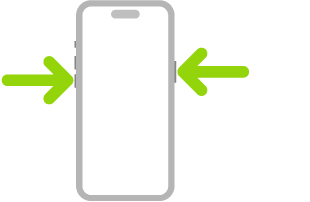
  • To restart your iPhone 17, press and hold down the Power and Volume buttons until a slider appears on-screen.
  • If restarting doesn’t work, you can "force restart" your iPhone 17 by pressing Volume Up, Volume Down, and then Power.
  • As a last resort, you can fix almost any glitch by resetting your iPhone 17.

Note: Information in this article applied to iPhone 17, ipPhone Air, iPhone 17 Pro, and iPhone 17 Pro Max.

It might sound like a joke, but it’s true: You can fix most tech problems by turning your device off and back on again.

If you run into a weird glitch on your iPhone 17 — maybe the sound won’t work, or apps keep crashing, or you can’t make calls — your first step should be to perform a quick restart. This will refresh the software on your iPhone 17 and likely fix whatever’s gone wrong.

And if your iPhone 17 is so bugged that you can’t even restart it, a force restart works just as well. This method "forces" your iPhone to turn off, even if it’s frozen.

Here’s how to restart or force restart an iPhone 17 — and what to do if restarting doesn’t fix the issue.

How to restart an iPhone 17

The steps to restart an iPhone 17, iPhone Air, iPhone 17 Pro and iPhone 17 Pro Max are the same.

  1. Press and hold both the Power button and either of the Volume buttons.
  2. When a slider labeled slide to power off appears at the top of the screen, drag it to the right.
  3. Wait a few moments for the iPhone to completely turn off and for the screen to go black.
  4. Press and hold the Power button until the Apple logo appears.

How to force restart an iPhone 17

When your iPhone 17 freezes, it might not even be able to show you the power slider. In this case, you’ll need to "force" your iPhone 17 to restart.

Don’t worry — this won’t harm your iPhone at all. Just beware that if you were working on a project, this will likely erase any unsaved data.

Again, the steps are the same for iPhone 17, iPhone 17 Pro and iPhone 17 Pro Max.

  1. Quickly press and release the Volume Upbutton.
  2. Quickly press and release the Volume Down button.
  3. Press and hold the Side button until the Apple logo appears, then release the Sidebutton.

During this process, you will see a slider to power off the ‌iPhone‌. You’re going to want to ignore it and continue holding down the Side button until the screen goes black. At that point, the Apple logo will pop up, and after the restart is complete, the screen will activate once again.

How to Reset an iPhone 17

If you’ve restarted and force restarted your iPhone 17 but it’s still not working, there’s a deeper issue at play. Some files or pieces of software might be corrupted, meaning that they’ll always cause an issue.

Your best chance at fixing these issues is to give your iPhone 17 a factory reset. A factory reset will erase all of the data on your iPhone 17 and return it to the state it was in when you first bought it, as if it just left the factory. This might sound extreme, but it’s a fantastic way to fix nearly any software issue. The factory reset your iPhone 17, go to Settings > General > Transfer or Reset iPhone > Erase All Content & Settings.